You know that little red badge on the Settings icon, the one that has said “1 update” for a month? That number is not nagging you for fun. Somewhere in that update is a fix for a hole that someone, somewhere, is actively trying to walk through.
The trick is to stop relying on willpower. Set your devices to update themselves once, and the red badge stops being your problem.
Key takeaways
- Automatic updates take about five minutes to set up per device and then run forever on their own.
- You need to enable it in four places: your phone, your computer, your app store, and your web browser.
- Scheduling updates for overnight charging means you never sit through an install mid-day.
- Auto-update does not cover everything, so a monthly two-minute check catches the stragglers.
When I switched my whole family over to automatic updates, the constant “should I click this?” texts stopped almost overnight. Here is exactly where every switch lives.
Turn on automatic updates on your phone
Your phone is the device that goes everywhere and holds the most, so start here. The setting exists on both platforms; it is just tucked in a slightly different spot.

On an iPhone or iPad
Open Settings, tap General, then Software Update, then Automatic Updates. Turn on both “Download iOS Updates” and “Install iOS Updates” plus “Security Responses.” Then, for apps, open Settings, tap Apps and then App Store settings, and switch on App Updates.
On an Android phone
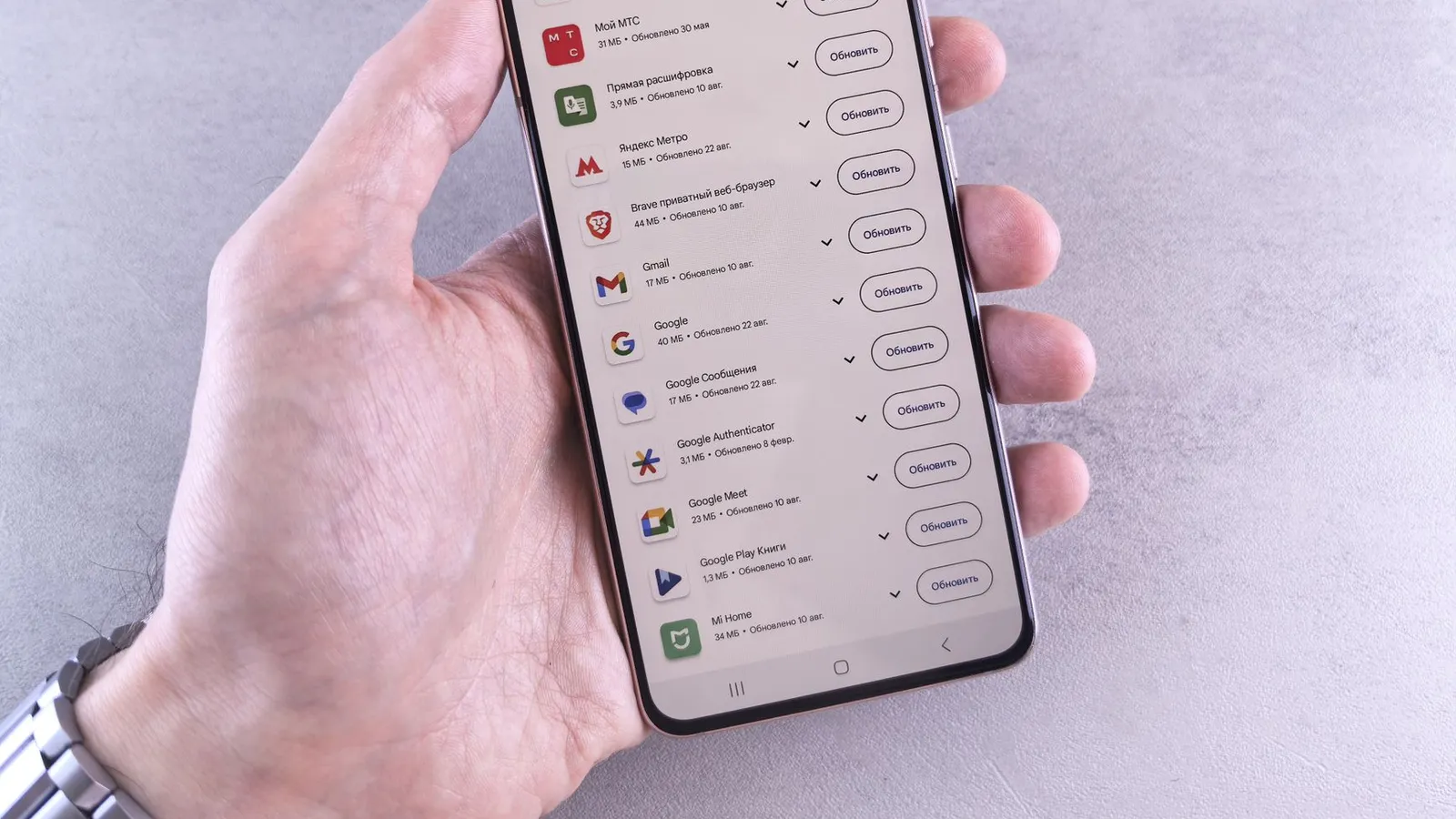
Open Settings and search for “system update” to find and enable automatic downloads. For apps, open the Play Store, tap your profile picture, go to Settings, then Network preferences, then Auto-update apps, and pick “Over any network” or “Wi-Fi only.”
Choose “Wi-Fi only” for app updates if you have a limited data plan. Your phone will still update automatically; it just waits until you are on Wi-Fi so it never eats your cellular data.
Turn on automatic updates on your computer
Computers are where people postpone updates the most, usually because a restart feels like it will interrupt something. Automatic settings solve that by installing quietly and only nudging you to restart when it is convenient.
On Windows, open Settings, go to Windows Update, click Advanced options, and make sure updates are on. Set your “active hours” so it never restarts while you are working. On a Mac, open System Settings, go to General, then Software Update, click the small “i” next to Automatic Updates, and switch every option on.
These two clicks matter more than most people realize. Updates are one of the four foundations I cover in the broader guide to securing your phone and computer, and they are the one that pays off the most for the least effort.
If your computer says an update “failed to install” more than once, do not ignore it. A stuck update leaves you exposed. Restart fully and try again, and if it keeps failing, that is worth a proper look.
Do not forget your browser and your apps
Your web browser is the program most exposed to the open internet, which makes it a favorite target. Chrome, Edge, Firefox, and Safari all update themselves, but that only works if you actually close and reopen them once in a while.
A browser that has been left open for two weeks is running two-week-old code. Once a week, fully quit it and reopen. If you want to tighten things further, I walk through the settings worth changing in the guide to tuning your browser security settings.
Apps outside the app store, like Zoom or a printer utility, often update on their own too, but not always. Those are the ones to catch in a monthly sweep.
The devices people always forget
Your phone and laptop are not the only things running software. Your home router, your smart TV, your video doorbell, and your game console all run code that occasionally needs patching too. A router in particular sits at the front door of your whole network.
Most routers can update themselves if you switch the option on, usually inside a settings page you reach by typing an address like 192.168.1.1 into a browser, or through the router maker’s app. Do this once for the router and check your other smart devices for an auto-update toggle while you are at it.
Why automatic beats doing it yourself
People assume manual updates are safer because they stay “in control.” In practice, the opposite is true. Manual means human, and humans forget, postpone, and click “remind me tomorrow” for months.
The whole reason this matters is that the gap between a fix being released and you installing it is exactly when attackers strike. Understanding why software updates keep you safe makes the case better than I can, but the short version is that speed is the entire point. Automatic updates make you fast without any effort.
| Device or app | Where to enable auto-update | Setup time |
|---|---|---|
| iPhone / iPad | Settings, General, Software Update, Automatic Updates | 2 minutes |
| Android phone | Settings, search “system update”; Play Store auto-update | 3 minutes |
| Windows PC | Settings, Windows Update, Advanced options | 3 minutes |
| Mac | System Settings, General, Software Update | 3 minutes |
| Web browser | Automatic, but quit and reopen weekly | 1 minute weekly |
Microsoft, Apple, and Google all release most security fixes on a predictable monthly rhythm. Official support pages like support.apple.com and support.microsoft.com list exactly what each update changed if you ever want to check.
Set a monthly two-minute check for stragglers
Automatic updates cover the big things, but a quick manual check once a month catches whatever slipped through: an app that needed a tap, a computer waiting on a restart, a device you had turned off during the last cycle.
Put a recurring reminder on the first of the month. Open your phone’s software update screen, your computer’s update screen, and give any pending restart the green light. Two minutes, done.
Your afternoon checklist
- Enable automatic iOS or Android updates in your phone’s settings.
- Turn on auto-update for apps in the App Store or Play Store.
- Switch on automatic updates in Windows Update or macOS Software Update.
- Set your computer’s active hours so it never restarts mid-task.
- Fully quit and reopen your web browser to grab its latest version.
- Restart your computer if any update is waiting on a reboot.
- Add a monthly reminder to check for anything the automatic system missed.
Do this once and updating stops being a chore you dread and becomes something that just happens. That red badge? You will barely see it again, because your devices will have already handled it.