Picture your phone sitting face-up on a restaurant table while you step away to wash your hands. In those ninety seconds, is it a sealed vault or an open drawer? The answer comes down to a few settings most people never touch.
A good lock screen does two quiet jobs at once: it keeps strangers out of your accounts, and it hides the little previews that give away too much even while the phone sits locked.
Key takeaways
- Use a six-digit PIN or longer, never a four-digit code or your birth year.
- Turn on Face ID or a fingerprint so the strong PIN is rarely a hassle.
- Hide message and code previews on the lock screen so strangers cannot read them.
- Set the screen to auto-lock after 30 seconds so it is never left open.
When I helped my sister set this up, the whole thing took under ten minutes, and the biggest change was one she never expected: she stopped flashing verification codes to anyone glancing at her phone.
Choose a lock that a thief cannot guess
The foundation is the code itself. A four-digit PIN gives only 10,000 combinations, and a determined thief can try the obvious ones fast. A six-digit PIN jumps to a million, and an alphanumeric passcode is stronger still.
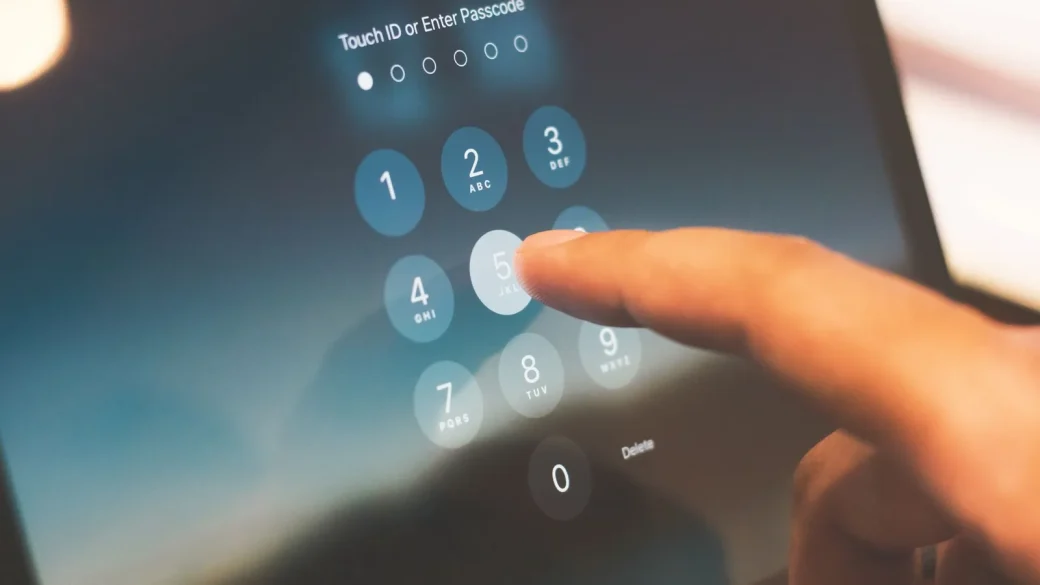
On an iPhone, go to Settings, then Face ID and Passcode, tap Change Passcode, and when it asks for a new code, tap “Passcode Options” to pick a six-digit or custom alphanumeric code. On Android, open Settings, go to Security or Lock screen, choose PIN, and enter at least six digits.
Avoid anything guessable: your birth year, 1234, 0000, or the same digit repeated. Those are the first things anyone tries. A random six digits you can still remember is the sweet spot.
Do not use the same PIN for your phone lock and your bank card or your banking app. If someone shoulder-surfs one, you do not want it to be the key to everything.
Add your face or fingerprint so the PIN stays easy
People resist a longer PIN because typing it fifty times a day sounds miserable. Biometrics solve that. With Face ID or a fingerprint, you glance or touch to get in, and you only fall back to the PIN occasionally.
On an iPhone, set this up under Settings, then Face ID and Passcode. On Android, look for the Fingerprint or Face option under Security. Enroll a fingerprint or two so it works even when one thumb is wet or gloved.
The strong PIN is still there as your backup, which matters because biometrics can fail after a restart or several failed tries. You get convenience most of the time and real strength underneath it. This is one piece of the wider plan for securing your phone and computer, and it pairs naturally with device tracking.
Control what shows on the lock screen
Here is the part almost everyone misses. Even with a great lock, your phone may still show full text messages, WhatsApp previews, and one-time login codes right on the lock screen where anyone can read them.
That is a gift to a thief. If your bank texts a login code and it pops up on a locked phone, someone can use it without ever opening the device.
Hide previews on iPhone
Go to Settings, then Notifications, then Show Previews, and set it to “When Unlocked” or “Never.” Now notifications still arrive, but the content stays hidden until you sign in.
Hide previews on Android
Open Settings, go to Notifications, then find “Notifications on lock screen” or “Sensitive notifications,” and choose to hide sensitive content. The exact wording varies by phone brand, but the option is always there.
Test it yourself. Lock your phone, then send it a text from another device. If you can read the whole message without signing in, your previews are still exposed and worth hiding.
Shorten the auto-lock and limit lock-screen access
A phone that stays awake for five minutes is a phone that spends five minutes wide open on that restaurant table. Shorten the auto-lock so it seals itself quickly when you set it down.
On an iPhone, go to Settings, Display and Brightness, then Auto-Lock, and choose 30 seconds. On Android, look for “Screen timeout” under Display and set it to 30 seconds or a minute.
While you are in there, check what is reachable from the lock screen without signing in. Voice assistants, the control center, and reply-from-lock-screen features can all leak more than you would like. Turn off the ones you do not need.
| Setting | Weak choice | Strong choice |
|---|---|---|
| Passcode length | Four digits | Six or more digits |
| Biometrics | Off, PIN only | Face or fingerprint on |
| Message previews | Always shown | Hidden until signed in |
| Auto-lock time | 3 to 5 minutes | 30 seconds |
Plan for the phone actually going missing
A strong lock buys you time, and that time is only useful if you can act on it. Before you ever lose the phone, turn on device tracking so you can locate, lock, or erase it remotely. The guide to setting up Find My Device before you lose it covers the exact steps.
And if the worst happens, having a clear plan beats panicking. Keep the first-steps checklist for a lost or stolen phone somewhere you can reach from another device. The consumer protection folks in the US also keep solid advice on protecting a mobile device at consumer.ftc.gov.
Your afternoon checklist
- Change your PIN to six digits or a custom alphanumeric passcode.
- Turn on Face ID or a fingerprint for everyday sign-in.
- Set message and code previews to hide until the phone is opened.
- Test it by texting your locked phone from another device.
- Shorten auto-lock to 30 seconds so the screen seals fast.
- Disable any lock-screen features you do not actually use.
- Turn on Find My or Find My Device for remote lock and erase.
None of this changes how your phone feels day to day, but it completely changes what a lost phone means for you. Ten minutes now buys a lot of calm later.