A reader once emailed me convinced her laptop was “just getting old.” The fan roared constantly, the battery died by lunch, and a browser toolbar she never installed had appeared overnight. None of that was age. It was malware, quietly mining and spying while she assumed the machine was tired.
Malware rarely announces itself with a skull and crossbones. It hides, and the tells are small enough to ignore until real damage is done. Here are the eight signs worth catching early, and exactly what to do the moment you spot one.
Key takeaways
- Most infections show up as small changes: pop-ups, sluggishness, or settings you never touched.
- Sudden battery drain, overheating, and a spiking data bill are classic signs of hidden background activity.
- Any of these signs is a reason to disconnect from the internet and run a full scan the same day.
- The dangerous mistake is assuming the cause is “old hardware” and doing nothing.
1. Pop-ups and ads that appear outside your browser
Ads inside a webpage are normal. Ads that pop up on your desktop when no browser is open are not. That kind of adware has burrowed into the system itself.
Be especially wary of pop-ups warning that you are infected and urging you to call a number or install a “cleaner.” That is a scam layered on top of the problem, not a fix.
2. Your device is suddenly slow and hot
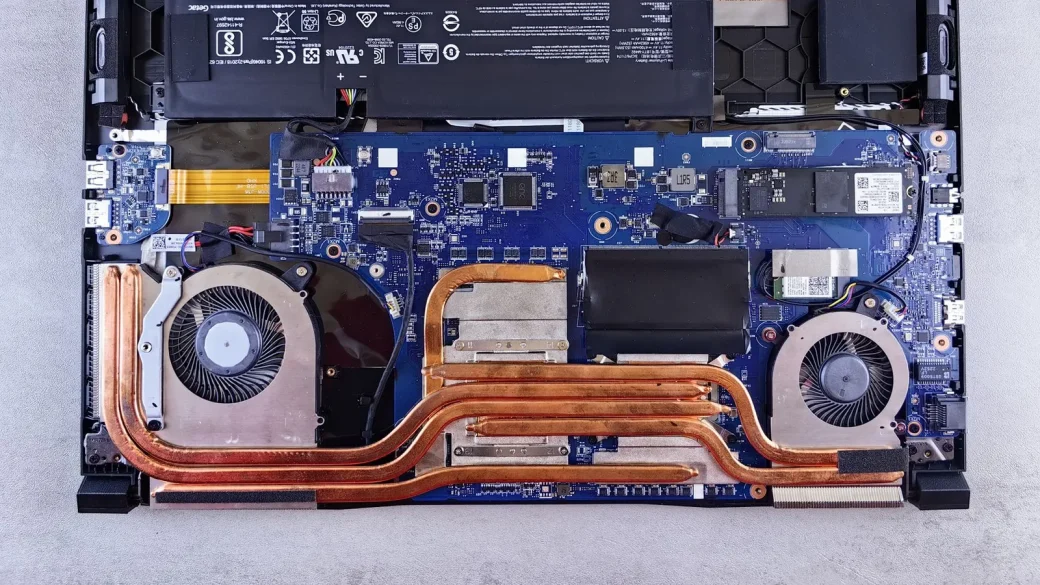
Malware works, and work uses your processor. If your laptop fan runs at full tilt while you are only reading email, something unseen is consuming power.
Cryptomining malware is a common culprit here. It hijacks your hardware to generate digital currency for a stranger, leaving you with heat, noise, and a shorter battery life.
3. The battery drains far faster than it used to
A phone that lasted all day and now dies by mid-afternoon deserves a second look. Background malware keeps the processor and network busy even when the screen is off.
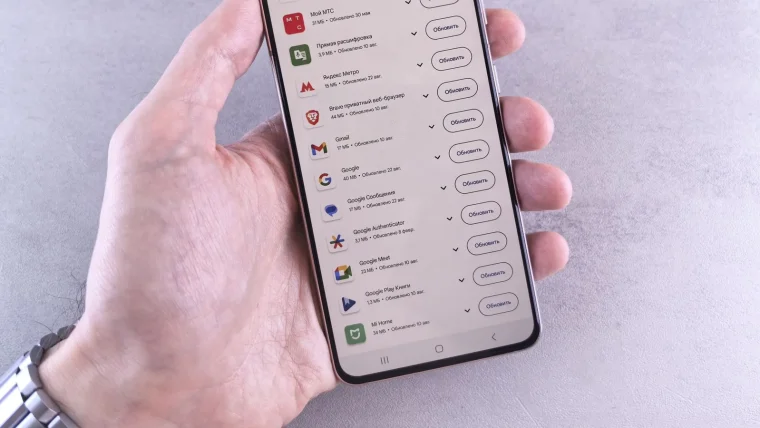
On both iPhone and Android, the battery settings screen lists which apps use the most power. An unfamiliar app near the top of that list is a strong clue worth investigating.
4. Your data usage spikes without explanation
Spyware phones home. It sends your keystrokes, passwords, or files to a server, and all that traffic shows up as data you did not knowingly use.
Check your phone’s data usage by app, or your home router’s traffic. A quiet program moving large amounts of data in the background is a serious red flag.
5. New toolbars, extensions, or a changed homepage
If your browser suddenly opens to a search engine you never chose, or sports a toolbar you did not install, malware has changed your settings to funnel you toward ads and fake results.
This browser hijacking is one of the most common infections, and one of the easier ones to spot because it stares you in the face every time you open the browser.
Some of these changes come from bundled software you agreed to during a rushed install. That still counts as unwanted, and the removal steps are the same.
6. Programs crash, freeze, or files go missing
Malware often destabilizes the system it invades. Apps that used to run fine now crash, files refuse to open, or folders vanish.
If files are being renamed with odd extensions or you find a “your files are encrypted” note, stop immediately: that is ransomware, and understanding how ransomware locks your files will guide your next move before you make things worse.
7. Your accounts do things you did not do
Friends receiving spam from your email, posts you never wrote, or a password that suddenly stops working can all mean malware stole your login. This is where an infection stops being a nuisance and starts costing money.
When I see this in a family member’s account, the first move is always the same: change the password from a different, clean device, then turn on two-factor login.
8. Security tools get disabled on their own
Sophisticated malware tries to blind its host. If your antivirus or Microsoft Defender keeps switching off, updates start failing, or you cannot open your security settings, assume something is actively fighting you.
This is the most serious sign on the list, because it means the malware is defending itself. Do not wait on this one.
What to do the moment you notice a sign
Speed matters more than perfection here. The faster you act, the less the malware can steal or spread.
Do not log into your bank or email from an infected device. Anything you type could be captured. Use a phone or a different computer you trust until the machine is clean.
First, disconnect from the internet to cut off the malware’s ability to send data or download more. Then run a full scan with your built-in tool; our step-by-step guide to removing malware yourself covers the whole cleanup. If you are still deciding whether extra security software is worth it, the primer on whether you need antivirus in 2026 answers that plainly. All of this sits inside the broader plan for securing your phone and computer. For reporting an infection tied to fraud, the CISA reporting page points you to the right place.
Your afternoon checklist
- Open your battery settings and note any unfamiliar app near the top of the usage list.
- Review your browser extensions and remove anything you do not recognize.
- Check your data-usage screen for apps sending unexpected amounts of traffic.
- Confirm your homepage and default search engine are what you actually chose.
- Verify your antivirus or Defender is switched on and has not been disabled.
- If any sign appears, disconnect from the internet and run a full scan the same day.
- Change important passwords from a clean device if any account acted strangely.
Trust the small signals. A laptop that runs hot for no reason or a browser that redirects you is trying to tell you something, and catching it in the first week is the difference between a quick scan and a stolen bank login.