The phone in your pocket knows where you slept last night, who you texted this morning, and which bank holds your paycheck. Your laptop remembers every password your browser saved and every photo you never got around to deleting. Most of us carry all of that around without a second thought.
Here is the good news. Protecting both devices does not take a degree or a weekend. A calm hour of setup, done once, covers the things that actually go wrong for regular people.
Key takeaways
- Four habits cover most real risk: updates, a screen lock, a plan for malware, and backups.
- Turning on automatic updates is the single highest-value thing you can do in five minutes.
- A lost or stolen phone is only a disaster if it is left open and untracked, so fix both today.
- Backups are what turn a stolen laptop into an annoyance instead of a catastrophe.
I set all of this up for my dad in about ninety minutes one Sunday, and he has not called me about a scary pop-up since. This guide walks the same path, in the order I did it.
Start with automatic updates on everything
Software updates are not just new emoji and rearranged menus. Most of them quietly patch security holes that criminals already know how to use. When you postpone an update for three weeks, you are leaving a door propped open the whole time.
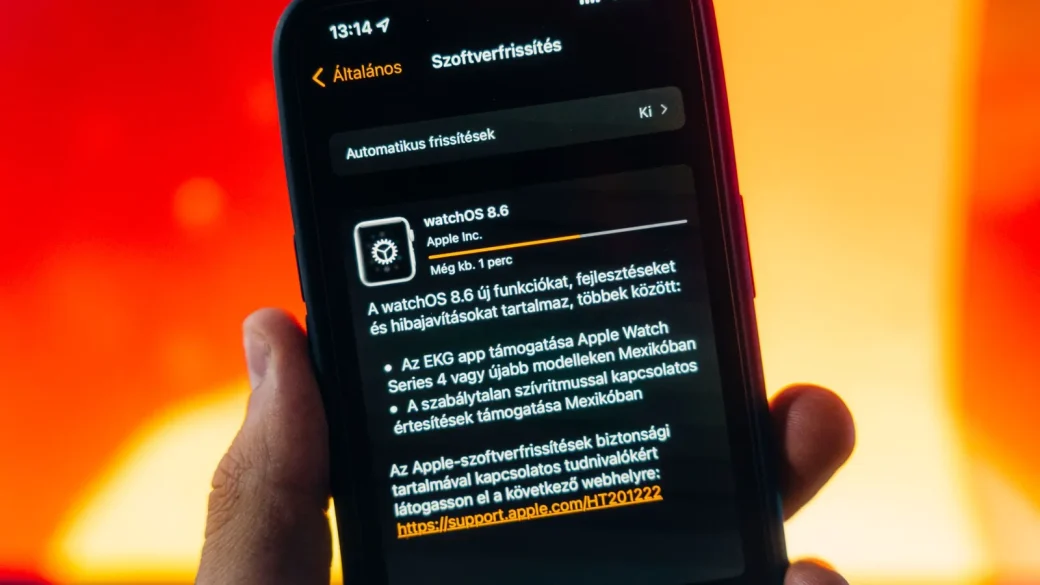
The fix is to stop deciding update by update and let the device handle it. On an iPhone, open Settings, tap General, then Software Update, then Automatic Updates, and switch everything on. On Android, open Settings, search for system update, and enable auto-download. On a computer, Windows Update and macOS Software Update both have an automatic setting buried one or two clicks deep.
If you want the full walkthrough with screenshots for each system, I explain how to turn on automatic updates across your devices so you never have to think about it again. And if you are the type who needs to know why before you commit, it helps to understand what those updates are actually fixing under the hood.
Set your phone to update overnight while it charges. You wake up patched, and you never sit through a progress bar in the middle of your day.
Lock the screen like you mean it
A screen lock is the wall between a stranger and everything on your phone. Skip it, and a phone left on a bar counter becomes an open filing cabinet: your email, your banking app, your saved cards, all one tap away.
Use a six-digit PIN at minimum, and turn on Face ID or a fingerprint so the PIN is rarely the thing standing in the way. Avoid a four-digit code, avoid your birth year, and avoid the classic 1234. Those take a determined thief seconds.
Then think about what shows on the lock screen itself. A stranger should not be able to read your full text messages or one-time login codes without signing in first. Setting a strong lock and trimming what previews on it is worth ten minutes, and I cover the exact steps to lock your phone screen the smart way in its own guide.
What a good lock actually stops
A proper lock does two jobs. It keeps a casual finder or thief out of your accounts, and it keeps your data encrypted so someone cannot pull files off the device by other means. On modern phones, the lock and the encryption are the same feature, which is why a strong code matters more than people assume.
Have a plan for malware before you need one
Malware is any nasty software that sneaks onto your device: a fake app, a poisoned download, a browser extension that turned out to be spyware. It can slow your machine to a crawl, steal your logins, or hold your files hostage.
You do not need to become paranoid. You need habits. Download apps only from official stores, be suspicious of any pop-up that says your computer is infected and to call a number, and never install software a phone caller talks you into. Those three rules block the large majority of home infections.
A real virus warning never gives you a phone number to call. That is a tech support scam every single time, and calling it is how people lose thousands of dollars.
Windows and Mac both ship with built-in protection that runs quietly in the background, which is more than enough for most households. The U.S. cybersecurity agency keeps a plain-language library of home safety basics at cisa.gov if you want a second, official voice on all of this.
Back up your data so a bad day stays small
Here is the question that decides how bad a stolen laptop or a dead phone really is: do you have a copy of everything somewhere else? If yes, you lost a device. If no, you lost your photos, your documents, and your peace of mind.
The simplest setup for most people is automatic cloud backup: iCloud on Apple devices, Google One or Google Photos on Android, and OneDrive or backup software on a computer. Turn it on once and it runs itself. For extra safety, add a second copy on an external drive you plug in now and then.
The gold standard is three copies of anything important, on two kinds of storage, with one copy kept somewhere else. That sounds fussy, but in practice it is just cloud plus one external drive. I break the whole routine down in the guide to backing up your data so you never lose it.
| Task | Time it takes | What it protects against |
|---|---|---|
| Turn on automatic updates | 5 minutes | Known security holes and exploits |
| Set a strong screen lock | 5 minutes | A lost or stolen device being opened |
| Enable device tracking | 5 minutes | Not finding or wiping a missing phone |
| Turn on cloud backup | 10 minutes | Losing photos and files for good |
| Learn one malware rule | 2 minutes | Fake alerts and support scams |
Backups also defeat ransomware. If your files are held hostage, you can wipe the machine and restore your copy instead of paying a criminal a cent.
Turn on find-my-device while you still have it
The best time to set up device tracking is right now, on the couch, while the phone is in your hand. The worst time is standing on a train platform realizing the phone is gone.
Apple calls it Find My, Google calls it Find My Device, and both let you see the phone on a map, make it ring, lock it remotely, or erase it from any browser. Flip it on today and a future bad moment becomes a five-minute recovery instead of a panic.
Your afternoon checklist
- Turn on automatic updates for your phone, computer, and app store.
- Set a six-digit or longer PIN and enable Face ID or a fingerprint.
- Trim what shows on your lock screen so codes and messages stay hidden.
- Enable Find My or Find My Device on every phone and laptop you own.
- Switch on automatic cloud backup for photos and important files.
- Plug in an external drive and make one extra copy of anything irreplaceable.
- Memorize the rule that a real virus warning never asks you to call a number.
- Confirm your built-in security software is on and set to scan automatically.
You do not have to do all of this in one sitting, but the whole list really does fit in an afternoon. Knock out updates and the screen lock first, and even if life interrupts you, you will already be safer than you were this morning.