Open your phone right now and check one thing: how many apps can see your location. On a typical phone that has been in use for a year or two, the answer is a dozen or more, including a flashlight app and a game that has no earthly reason to know where you are.
Your phone is the most personal object you own, and out of the box it shares far more than it needs to. The fix is not a special app or a subscription. It is ten minutes of tapping through settings you already have.
Key takeaways
- Most privacy leaks come from app permissions you granted once and forgot.
- Set location access to “While Using” or “Ask Every Time” instead of “Always.”
- Turn off ad tracking so companies cannot follow you between apps.
- Tidy your lock screen so notifications do not spill your messages to anyone nearby.
Start with app permissions, the biggest lever
Permissions are the promises your phone makes to each app about what it can touch: your camera, microphone, contacts, photos, and location. Apps ask for the moon, and most of us tap “Allow” to get to the thing we wanted.
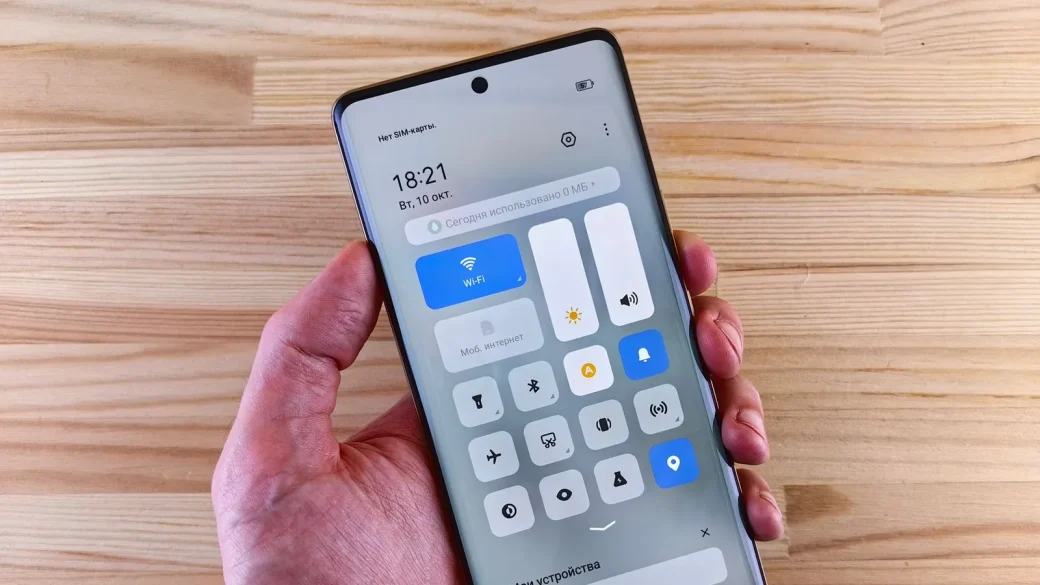
On an iPhone, open Settings and scroll down to the list of apps, or go to Settings, Privacy and Security, then pick a category like Location Services. On Android, open Settings, Security and privacy, then Privacy, then Permission manager.
Go category by category. For each one, ask a blunt question: does this app need this to do its job? A ride app needs location. A photo editor needs photos. A puzzle game needs neither your contacts nor your microphone.
Set location to “While Using the App” or “Ask Every Time” for almost everything. Very few apps have a real reason to track you in the background, and this single change stops most of the quiet location trade that happens while your phone sits in your pocket.
Turn off cross-app ad tracking
Advertisers assign your phone a hidden identifier so they can stitch together what you do across different apps. You can switch it off, and doing so does not cost you anything except slightly less eerie ads.
On an iPhone, go to Settings, Privacy and Security, Tracking, and turn off “Allow Apps to Request to Track.” Also visit Settings, Privacy and Security, Apple Advertising, and turn off Personalized Ads.
On Android, open Settings, Security and privacy, then Privacy, then Ads, and choose Delete advertising ID. Apple describes what app tracking transparency does on its official privacy support page.
Tighten your lock screen
Your lock screen is the one part of your phone strangers see without signing in at all. If full message previews show up there, a glance over your shoulder reads your two-factor codes and private texts.
Hide notification previews
On an iPhone, go to Settings, Notifications, Show Previews, and choose the option that reveals content only after you sign in. On Android, open Settings, Notifications, then set lock screen notifications to hide sensitive content.
Trim what is reachable while locked
Both systems let control panels, wallets, and assistants respond from the lock screen. Turn off the ones you do not use there. The full walkthrough for a smart, private lock screen lives in the guide on how to lock your phone screen the smart way.
A two-factor code that appears in a lock-screen preview defeats the point of two-factor. If someone grabs your phone off a table, they can read the code without ever signing in. Hiding previews closes that gap.
Review the settings that quietly build a profile of you
A few background features log more than people expect. None of them are secret, but they are buried.
| Setting | What it collects | Suggested choice |
|---|---|---|
| Location history / timeline | A map of everywhere you go | Turn off or auto-delete |
| Significant locations (iPhone) | Places you visit often | Turn off unless you use it |
| Microphone access for assistants | Always-listening for wake words | Off if you do not use voice |
| Diagnostics and usage sharing | Analytics sent to the maker | Turn off |
| Personalized ads | Interest profile for advertising | Turn off |
When I set this up for my dad, the location history was the one that surprised him. A neat little map showed every coffee shop and pharmacy he had visited for months. He turned it off in about four seconds once he saw it.
Clean up photo metadata before you share
Every photo your phone takes can carry hidden data, including the exact spot where you stood. Post that picture publicly and you may hand strangers your home address without meaning to.
On an iPhone, when you share a photo, tap Options at the top and turn off Location before you send it. On Android, the Google Photos share menu has a “Remove location data” toggle. It takes one extra tap and closes a leak most people never think about.
Revisit permissions after every big update
Operating-system updates occasionally reset privacy choices or introduce new toggles. A setting you turned off last year can quietly come back on. Making a quick permissions pass part of your routine after any major update keeps your choices from drifting.
Lock down connections while you are out
Privacy is not only about apps. How your phone connects to the world matters too, especially on networks you do not control.
Turn off automatic connection to open Wi-Fi networks so your phone does not silently join whatever hotspot is nearby. Keep Bluetooth off when you are not using it. On public networks in particular, a few habits keep your traffic from leaking, and the guide on how to stay safe on public Wi-Fi in cafes spells them out. For the wider picture of protecting your devices, the phone and computer basics overview ties it all together.
Your afternoon checklist
- Open the permission manager and set location to “While Using” or “Ask Every Time” for every app that does not clearly need more.
- Revoke microphone, camera, and contacts access from any app that has no real use for them.
- Turn off cross-app ad tracking and delete or reset your advertising identifier.
- Hide sensitive notification previews on your lock screen.
- Turn off location history or set it to auto-delete.
- Disable diagnostics and usage data sharing.
- Switch off automatic joining of open Wi-Fi networks and keep Bluetooth off when unused.
You do not have to become a privacy hermit to feel the difference. Ten minutes in these menus quietly turns your phone from something that talks about you all day into something that mostly keeps its mouth shut.