Almost nobody checks whether phone tracking is switched on until the phone is already gone. By then it is too late. The feature that could have shown you a map with a moving dot is sitting there, unconfigured, in a settings menu you never opened.
The good news: turning it on takes about ten minutes across all your devices, and you do it once. Then it quietly waits, ready for the day you need it.
Key takeaways
- Find My (Apple) and Find Hub (Google) let you locate, lock, or erase a lost device from any browser.
- Setup is a one-time job of roughly ten minutes for a phone, and a few minutes each for a laptop and tablet.
- Turn on “Find My network” or “offline finding” so devices can be located even when powered off or without signal.
- Enable “Activation Lock” so a thief cannot wipe and resell your phone.
- Test it once from another device so you trust it works before you ever rely on it.
Set up Find My on an iPhone or iPad
Open Settings, tap your name at the very top, then tap Find My. Turn on Find My iPhone, and inside that menu switch on Find My network and Send Last Location. Those two extras matter more than most people realize.
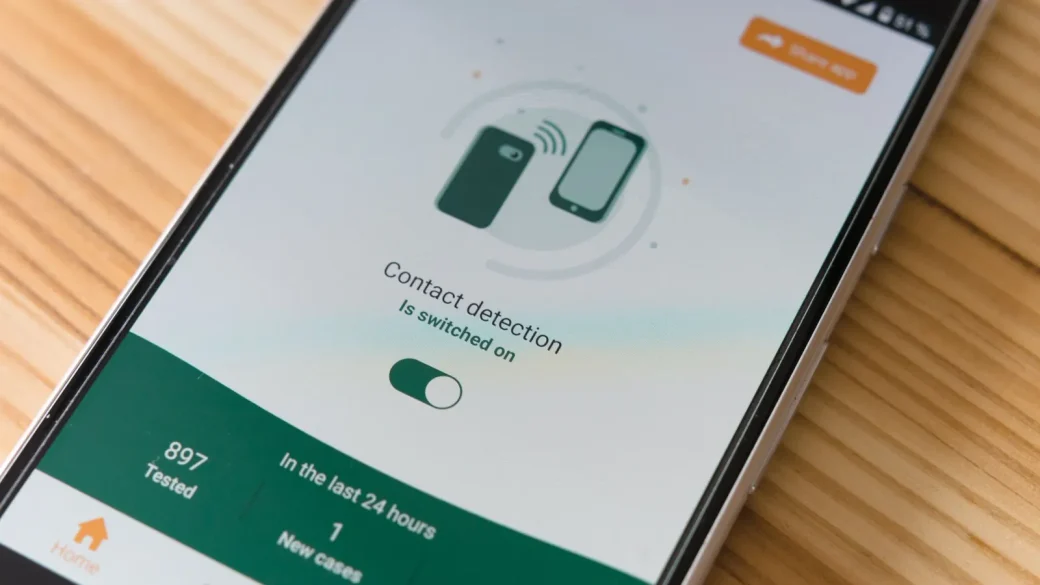
Find My network lets other Apple devices nearby anonymously relay your phone’s location even when it is offline or the battery is dead. Send Last Location transmits the final position just before the battery gives out. Together they mean a phone that dies in a taxi still leaves you a breadcrumb.
When I set this up for my dad, the part he appreciated most was that his iPad and AirPods showed up on the same map. One login, every Apple gadget he owns, all findable in one place.
On iPhones running recent software, “Activation Lock” turns on automatically with Find My. It ties the phone to your Apple account so a thief cannot erase and reactivate it without your password, which makes a stolen iPhone close to worthless to resell.
Set up Find Hub on Android
On Android, open Settings, go to Security & privacy, then Device finders (the exact wording varies slightly by brand), and open Find Hub. Make sure it is turned on and signed in to your Google account.
Inside the settings, enable the network option so your phone can be found even without a data connection, using nearby Android devices as relays. Samsung owners have a second, parallel option worth turning on too.
Samsung’s extra layer
Samsung phones include SmartThings Find alongside Google’s tool. Turn on both. If one service cannot reach the phone, the other sometimes can, and the overlap costs you nothing. You will find it under Settings, then your Samsung account, then Find My Mobile.
Samsung’s version adds a genuinely handy option that lets you get back into the phone from the web if you forget the pattern. It also offers offline finding through nearby Galaxy devices, mirroring what Apple and Google do. Switch these on now so they are ready.
Do not forget the laptop
Your computer holds just as much as your phone, yet people rarely set up tracking on it. Both major systems make it simple.
| Device | Where to turn it on | Find it later at |
|---|---|---|
| iPhone / iPad | Settings > your name > Find My | icloud.com/find |
| Mac | System Settings > your name > Find My | icloud.com/find |
| Android phone | Settings > Security > Find Hub | google.com/android/find |
| Windows laptop | Settings > Update & Security > Find my device | account.microsoft.com/devices |
On a Mac, the option lives in System Settings under your name. On Windows, open Settings, go to Update & Security, choose Find my device, and switch it on. Windows tracking requires you to be signed in with a Microsoft account, so a purely local account will not have it.
A tracking service can only locate a device that has some power and a way to phone home. Keep location services enabled, and pair this with regular backups so that even a device you never recover does not take your files with it. Our walkthrough on how to back up your data covers the easy automatic options.
Test it before you trust it
Setting a feature and never checking it is how people end up staring at a broken map during a crisis. Take two minutes now to prove it works.
From a second device or a computer, sign in to the finder page for your account and confirm your phone appears. Play the sound. Watch the phone in your hand start ringing. That small test turns a settings toggle into something you actually believe in.
While you are there, notice how precise the location is. On a strong connection it can pin the phone to a specific room. On a weak one it may show only a neighborhood. Knowing what to expect keeps you calm later, when a rough location is still enough to jog your memory about where you left it.
Tracking is one piece of a bigger habit. If the worst happens, our step-by-step guide for a lost or stolen phone walks you through the exact order of actions, and a strong lock screen keeps the device useless to whoever picks it up.
Keep everyone signed in to the right account
Tracking only works if the device is signed in to your account, not a shared family one or an old address you no longer check. Double-check that each phone, tablet, and laptop uses the account you can actually log in to today. For a wider tune-up, start with the basics of securing your phone and computer.
Your afternoon checklist
- On iPhone, turn on Find My iPhone plus Find My network and Send Last Location.
- On Android, open Find Hub and enable the offline network finding option.
- Samsung owners: also switch on SmartThings Find under your Samsung account.
- Turn on Find My on your Mac or Find my device on your Windows laptop.
- Confirm every device is signed in to an account you can access today.
- Keep location services enabled so devices can report where they are.
- Test the setup by playing a sound on your phone from another device.
Ten minutes today buys you a map, a lock button, and a chance to get your device back instead of just mourning it. Set it up while you are thinking about it, then let it fade into the background where it belongs. You can read more official detail from Apple’s Find My help page or Google’s device-finding guide.