Picture the moment a hard drive dies. No warning click, no slow decline: one morning your laptop shows a blinking folder or a blue error, and every photo from the last five years is trapped inside a chip that no longer talks to anything. I have watched a friend cry over a decade of baby pictures locked in exactly that way.
The good news is that the fix costs less than a nice dinner and takes an afternoon to set up. The only real decision is where those copies should live: on a drive you can hold, in an account you log into, or (my honest recommendation) both.
Key takeaways
- Cloud backup is automatic and survives a house fire or theft; local backup is fast, private, and cheap over time.
- The strongest plan uses both, following the simple 3-2-1 rule: three copies, two types of storage, one kept offsite.
- Budget roughly $60-120 a year for cloud, or a one-time $70-150 for an external drive.
- Ransomware can encrypt a plugged-in backup drive too, so an offline or versioned copy matters more than most people realize.
What each type of backup actually means
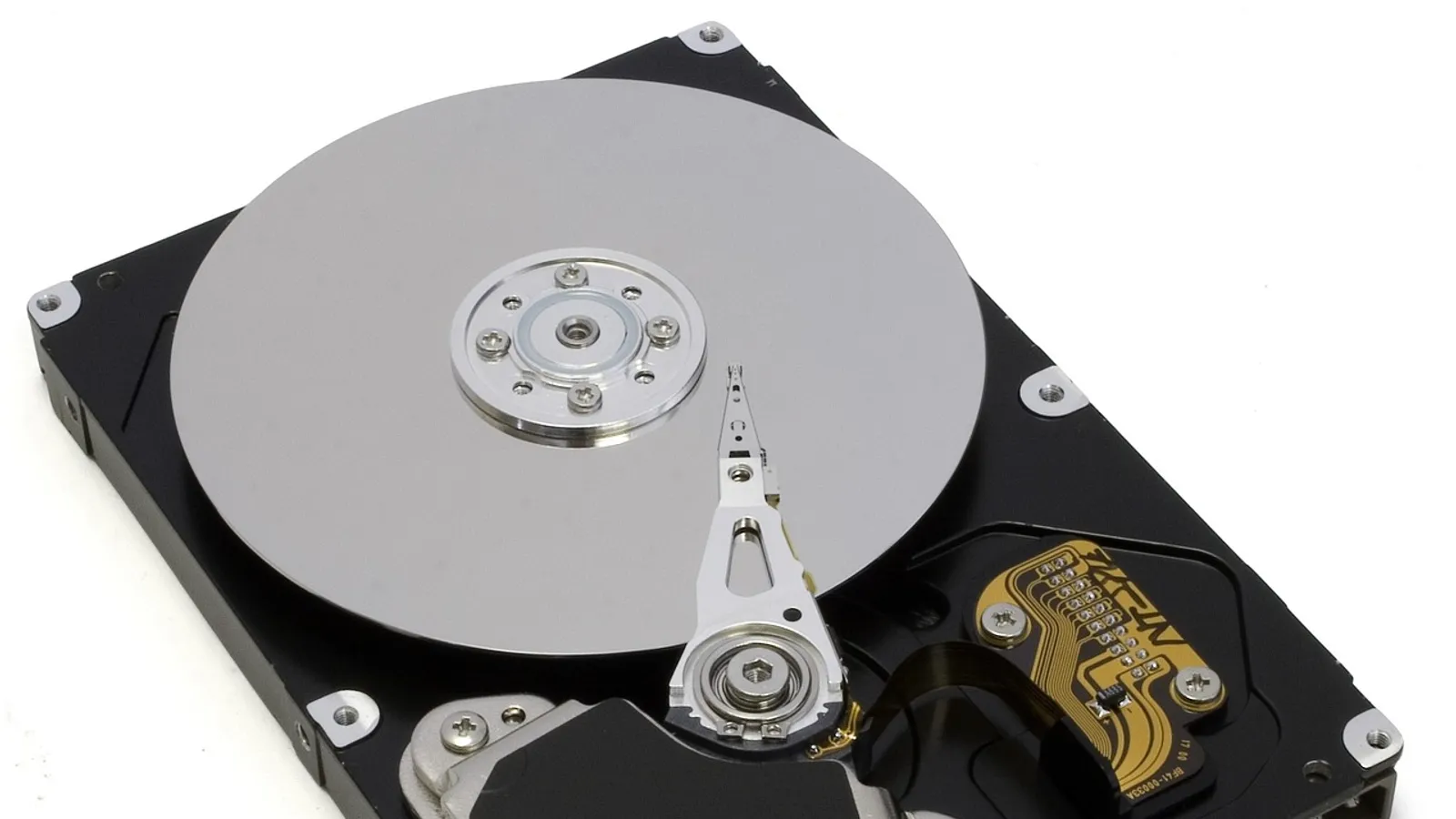
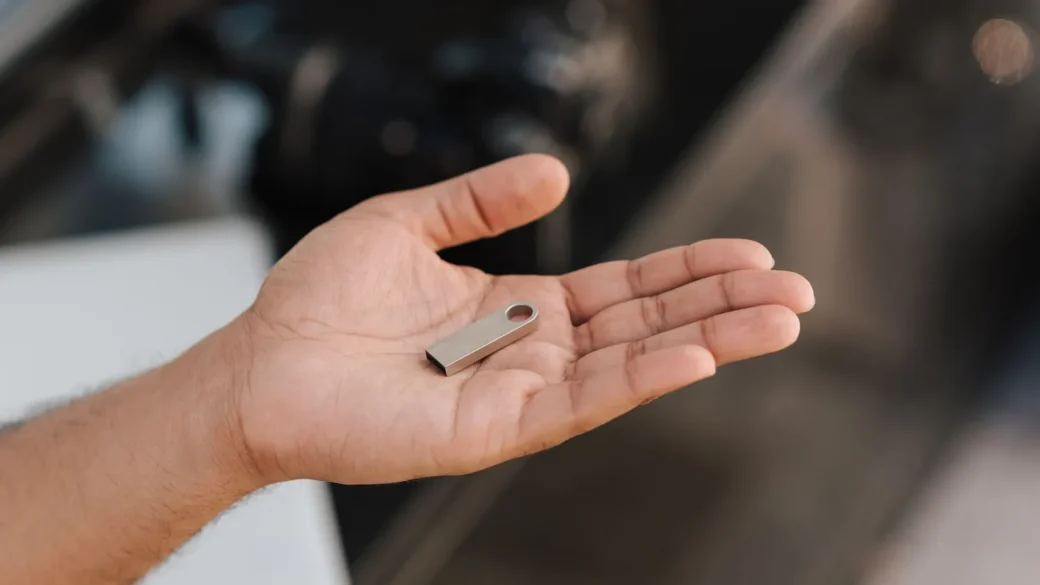
A local backup is any copy stored on hardware in your home: an external hard drive, a USB stick, or a small network drive that sits on a shelf. You plug it in, files copy over, and the data never leaves the building.
A cloud backup sends encrypted copies of your files to a company’s servers over the internet. Services like Backblaze, iCloud, Google One, and Microsoft OneDrive run quietly in the background and update whenever a file changes.
Neither is inherently safer. They fail in different ways, which is exactly why pairing them works so well. A drive can be dropped or stolen; a cloud account can be lost to a forgotten password or a billing lapse.
Cloud vs local: the honest comparison
Here is how the two stack up on the things that actually matter when your files are on the line. Read the recovery-speed row twice, because that is where people get surprised.
| Factor | Cloud backup | Local backup |
|---|---|---|
| Upfront cost | Low (often free tier to start) | $70-150 for a drive |
| Ongoing cost | $60-120 per year for real capacity | Near zero after purchase |
| Setup effort | Install app, sign in, walk away | Plug in, choose folders, schedule |
| Survives fire or theft | Yes, copies live offsite | No, unless you store it elsewhere |
| Recovery speed | Slow for large amounts (days over slow internet) | Fast, limited only by the drive |
| Privacy | Depends on the provider and encryption | Fully in your hands |
| Ransomware resistance | Good if the service keeps old versions | Weak if the drive stays plugged in |
If your internet upload speed is under 20 Mbps, the first full cloud backup of 500 GB can take several days. Start it before you go to bed and leave the laptop awake and plugged in.
When cloud backup is the better first move
Cloud wins when you want something that protects you without any ongoing effort. Once it is installed, you can forget it exists until the day you need it, which is precisely when most people wish they had one.
It is also the only option that survives a disaster at your address. A fire, a flood, or a break-in that takes your laptop and your backup drive in the same bag leaves cloud copies untouched on servers far away.
For phones especially, cloud is the path of least resistance. Turning on iCloud Backup or Google’s device backup means a new phone can restore your photos and messages in minutes. Apple’s own guide on how iCloud Backup works walks through the exact toggles.
Sync is not the same as backup. If a file gets deleted or corrupted on your laptop, plain sync can copy that damage everywhere. Choose a service that keeps 30 days of file versions, so you can roll back.
When local backup earns its place
Local backup shines on speed and control. Restoring 200 GB from an external SSD takes minutes, not the days a cloud restore might need over home internet.
It also keeps your files entirely off other companies’ servers, which matters if you handle sensitive documents or simply prefer to own your data outright. There is no monthly bill and no account that can be locked.
The catch is discipline. A local backup only helps if you actually plug the drive in and run it. When I set this up for my dad, I bought a drive that starts a backup automatically the moment it is connected, so his only job is to plug it in on Sundays.
A word on ransomware and plugged-in drives
This trips up a lot of people. If your backup drive is always connected, ransomware that hits your computer can encrypt the backup too, wiping out your safety net in one stroke. Understanding how ransomware spreads to connected storage is worth ten minutes before you settle on a routine.
The fix is simple: unplug the drive between backups, or use a cloud service that stores old versions the attacker cannot reach.
The plan I actually recommend: use both
Security folks lean on the 3-2-1 rule, and it is genuinely easy for a normal person to follow. Keep three copies of anything important, on two different kinds of storage, with one copy offsite.
In practice that looks like this: your live files on the laptop (copy one), an external drive you plug in weekly (copy two, second storage type), and a cloud service running quietly (copy three, offsite). If any single piece fails, the other two carry you.
If you are starting from zero, our step-by-step walkthrough on building a reliable backup routine pairs perfectly with this decision. And because backups are one leg of a bigger stool, the overview on securing your phone and computer ties it together with updates and screen locks. The point is not to pick a winner; it is to stop relying on one fragile copy.
A backup you have never tested is a guess, not a safety net. Once a quarter, restore one random file to confirm the copies actually open. The CISA Secure Our World guidance says the same thing in plainer words.
Your afternoon checklist
- List the folders you would grieve losing: photos, documents, tax files, project work.
- Pick one cloud service and install its app today, then let the first backup run overnight.
- Buy an external drive at least twice the size of the data you want to protect.
- Set the local backup to run weekly, and unplug the drive when it finishes.
- Turn on phone backup (iCloud or Google) so a lost phone is a shrug, not a disaster.
- Enable 30-day version history in your cloud settings to survive ransomware and mistakes.
- Test one restore now: pull a single file back from each backup and open it.
- Put a monthly reminder on your calendar to confirm both backups still ran.
You do not need a perfect system, just two copies in two places that you actually check now and then. Set it up this afternoon, test it once, and the next dead hard drive becomes a minor annoyance instead of a genuine loss.