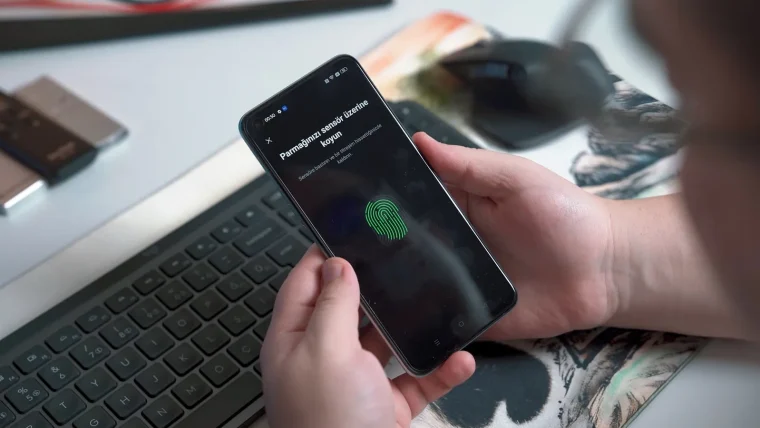
Here is a number that should bother you: a stolen password is worthless to an attacker if you have turned on two-factor authentication. Microsoft has said that this one setting blocks the overwhelming majority of automated account attacks. It is the closest thing to a free superpower in all of security.
And yet most people leave it off, usually because they think it will be a hassle or they will lock themselves out. Both fears are fixable in the next twenty minutes, so let us walk through it together.
Key takeaways
- Two-factor authentication adds a second step so a stolen password alone cannot get anyone in.
- An authenticator app is safer than text-message codes and takes the same effort to set up.
- Save backup codes during setup so a lost phone never locks you out.
- Do your email, bank, and main social accounts first, in that order.
- The whole thing takes about two minutes per account.
What two-factor really means
Two-factor authentication, often shortened to 2FA, means proving who you are in two ways instead of one. The first factor is something you know, your password. The second is something you have, usually your phone.
So even if a scammer buys your password from a breach, they hit a wall at the second step. They do not have your phone, so they cannot produce the code, and the login fails.
That is the entire idea. It is a second lock on the door, and it is the single most effective thing you can add on top of the password security basics everyone should have in place.
Pick your second factor first
Before you flip any switches, decide which kind of second factor you will use. There are three common types, and they are not equally strong.
Authenticator app (recommended)
An authenticator app on your phone shows a fresh six-digit code every 30 seconds. Popular free ones include Google Authenticator, Microsoft Authenticator, and the code feature built into many password managers. This is the sweet spot of safe and easy.
Text message codes
The service texts you a code when you log in. This is better than nothing and fine for low-risk accounts, but it is the weakest option, because scammers can hijack your phone number. Our comparison of an authenticator app versus text-message codes explains exactly when texts are acceptable.
Security key
A small physical key you plug in or tap. It is the strongest option and worth it for high-value accounts, though most people start with an authenticator app and add a key later.
If your password manager can generate 2FA codes, keeping them there is convenient. Just make sure your manager account itself is protected with its own strong second factor, so you are not putting every egg in one exposed basket.
Turn it on, step by step
The exact wording differs slightly per service, but the path is nearly always the same. Here is the general recipe that works on almost every account.
- Open the account’s Settings, then look for Security or Password.
- Find “Two-factor authentication,” “2-step verification,” or “Login verification.”
- Choose the authenticator app option when offered.
- The site shows a QR code. Open your authenticator app, tap add, and scan it.
- The app starts showing a six-digit code. Type it back into the site to confirm.
- The site then shows backup codes. Save these somewhere safe right now.
When I turned this on for my email, the trickiest part was simply finding the setting, buried under Security. Once I was there, the actual scan-and-confirm took under a minute.
The step nobody should skip: backup codes
Backup codes are the reason a lost phone will not lock you out, and skipping them is the mistake that scares people off 2FA in the first place. During setup, every service offers a list of one-time backup codes. Save them.
Store them somewhere you can reach without your phone: printed and kept in a drawer, or saved as a secure note in your password manager on a different device. If you ever lose your phone, one of these codes gets you back in.
Do not store your backup codes only on the same phone that runs your authenticator app. If that phone is lost or breaks, you would lose both the app and the codes at once, which is the exact lockout you were trying to avoid.
Do these accounts first
You do not have to enable 2FA everywhere today. Protect the accounts that would cause the most damage, then add the rest over time.
| Account | Why it comes first | Best second factor |
|---|---|---|
| Main email | Resets passwords for everything else | Authenticator app |
| Bank and payment apps | Direct access to your money | App or security key |
| Password manager | Holds all your other logins | App or security key |
| Main social media | Used to impersonate you | Authenticator app |
| Shopping with saved cards | Can rack up fraudulent charges | Authenticator app |
Work down that list and you have covered the accounts attackers actually target. Everything else can wait for a quieter day.
If you get a code you did not ask for
One bonus: 2FA doubles as an early warning system. If a login code arrives when you were not trying to sign in, someone has your password and is trying to get in right now.
Do not enter that code anywhere, and never read it out to a caller claiming to be support. Instead, change that account’s password immediately using your password manager, which you can set up alongside this using our guide to choosing a password manager.
The U.S. cybersecurity agency’s turn on multifactor authentication guide is a solid outside reference with links for the biggest services.
Your afternoon checklist
- Install a free authenticator app on your phone.
- Turn on 2FA for your main email using the app option.
- Save your email backup codes somewhere off your phone.
- Repeat for your bank and payment apps.
- Add 2FA to your password manager account.
- Turn it on for your main social media accounts.
- Test one login to confirm the codes work before you move on.
Twenty minutes of setup buys you the biggest single jump in account safety available to a regular person. Grab your phone, start with your email, and give the scammers a wall they cannot climb.