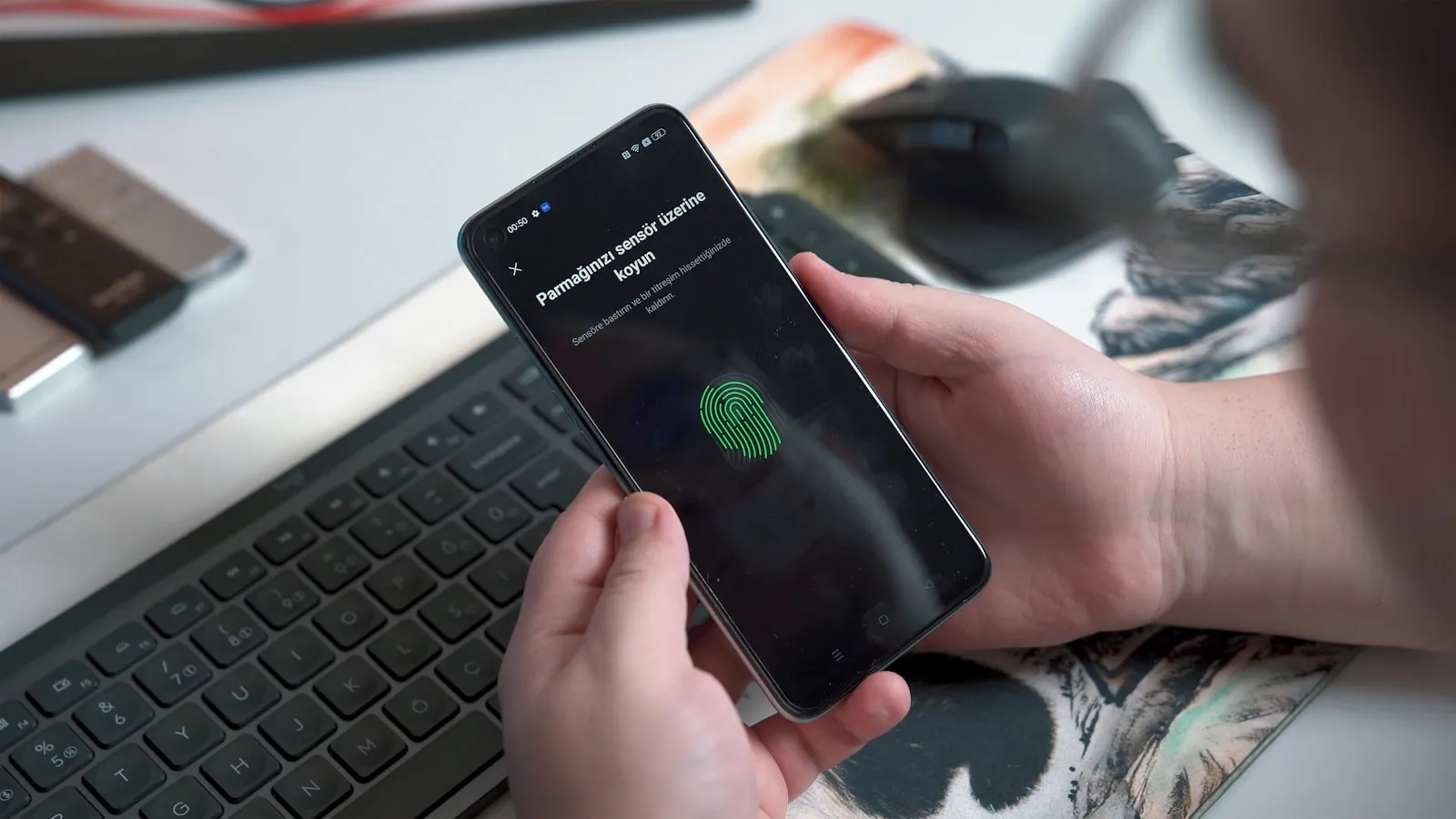
You sign in to your email, and instead of typing anything, your phone asks for your fingerprint. Two seconds later you are in. No password to remember, nothing to type, nothing a scammer could trick out of you over the phone.
That is a passkey, and it is quietly showing up on accounts you already own. If you have seen the word pop up on Google, Apple, PayPal, or Amazon and wondered whether to bother, this is the plain-language version of what it means for you.
Key takeaways
- A passkey replaces your password with a face scan, fingerprint, or device PIN, so there is nothing to type or forget.
- Passkeys are tied to a real website, which makes them resistant to phishing in a way passwords never were.
- They sync across your devices through Apple, Google, or your password manager, so losing one phone does not lock you out.
- You can keep your old password as a backup while you try passkeys on a few accounts first.
What a passkey actually is
A passkey is a pair of digital keys. One key stays locked inside your phone or laptop and never leaves it. The other key lives on the website you are signing in to.
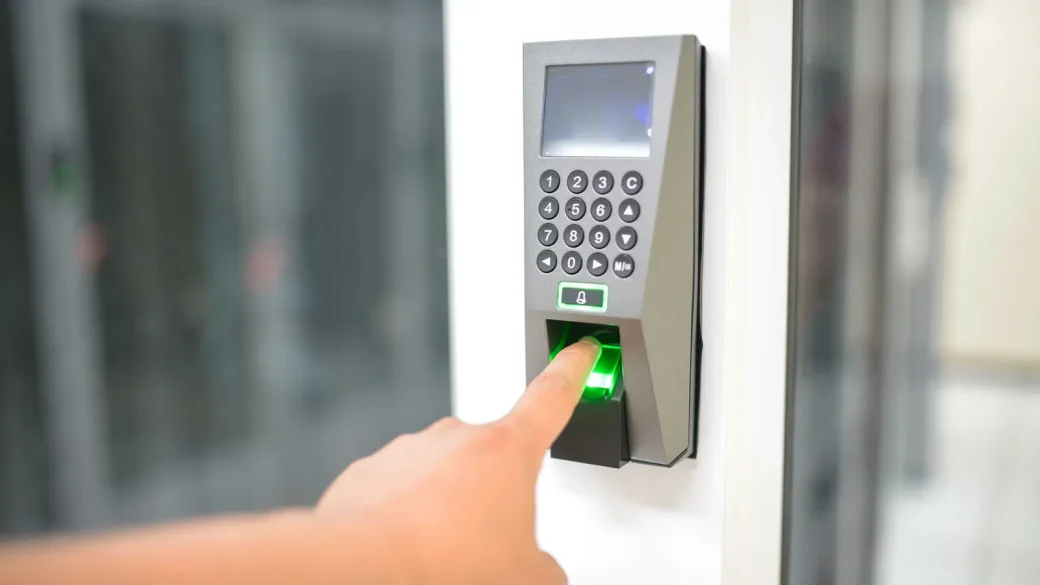
When you log in, the two keys check each other. Your device proves it holds the private key by asking you to unlock it, usually with the same face scan or fingerprint you use to open your phone. Nothing secret ever travels across the internet, so there is nothing for a thief to intercept or steal from a company database.
Compare that to a password. A password is a shared secret: you know it, and the website stores a scrambled copy of it. If that company gets breached, or if you get tricked into typing your password on a fake page, the secret is out. A passkey has no shared secret to leak.
You do not need to understand the cryptography to use a passkey, any more than you need to understand engine timing to drive a car. The unlock feels exactly like unlocking your phone.
Why passkeys are harder to steal
The biggest everyday win is phishing resistance. A passkey is bound to the exact web address it was created for. If you land on a convincing fake of your bank, your passkey simply will not offer itself, because the address does not match.
That single fact removes the most common way people lose accounts. You cannot be tricked into handing over a passkey the way you can be talked into typing a password into a lookalike site. There is nothing to hand over.
A mistake I see constantly is people assuming a strong password is enough. A long, unique password is genuinely good, and I still want you to have one. But even a perfect password can be phished, keylogged, or exposed in a company breach. Passkeys close those doors. For a fuller picture of how logins fit together, our overview of password security basics for regular people lays out the whole path.
What a scammer can no longer do
They cannot phone you pretending to be support and coax the passkey out of you, because it never leaves your device. They cannot buy it in a breach dump, because the website only ever stores the public half. And they cannot reuse it on another site, because each passkey works on exactly one service.
Where your passkeys are stored and synced
This is the part that worries people most: what happens if I lose my phone? The good news is that passkeys sync, so they are not trapped on one gadget.
| Where you store them | Syncs across | Good fit for |
|---|---|---|
| Apple (iCloud Keychain) | iPhone, iPad, Mac | People fully in the Apple world |
| Google Password Manager | Android, Chrome on any computer | Android and Chrome users |
| A password manager (1Password, Bitwarden) | Every device and browser you install it on | People with a mix of Apple, Android, and Windows |
If your household mixes an iPhone with a Windows laptop, a standalone password manager is usually the smoothest choice because it does not care what brand your devices are. If you are still deciding on one, our guide to how passkeys and passwords compare covers the trade-offs before you commit.
Set up a passkey on two devices you own, like your phone and your laptop, before you rely on it. That way a lost or dead phone is an annoyance, not a lockout.
Which accounts support passkeys today
More than you might expect. As of 2026, Google, Apple, Microsoft, Amazon, PayPal, eBay, Best Buy, and a growing list of banks and password managers all support passkeys. The list gets longer every few months.
You do not have to switch everything at once, and you should not try. Start with the accounts that would hurt most if someone broke in: your primary email, then any account holding money.
Your email deserves special attention because it is the master key to almost everything else. If someone controls your inbox, they can reset the passwords on your other accounts. Protecting it first gives you the biggest return for the least effort.
You can keep your password too
Adding a passkey usually does not delete your password. Most sites let both exist side by side for now, which means you can experiment without burning any bridges. If a passkey ever feels awkward on some device, your password is still there as a fallback.
A realistic look at the rough edges
Passkeys are genuinely better, but they are not flawless yet, and I would rather you hear that from me than discover it mid-checkout. Setup can vary between websites, and the buttons are not always in obvious places.
Signing in on a device that is not yours, like a friend’s laptop, can be clunky. Usually it works by scanning a QR code with your phone, which then approves the login. It is secure, but it takes a few extra taps.
Recovery also depends on your account provider, so keeping your email locked down and your backup options current still matters. When I set this up for my dad, the thing that gave him confidence was knowing his old password still worked if anything went sideways. To make weak spots harder to exploit while you transition, it helps to know the exact steps to create passkeys on your phone and laptop so nothing is left half configured.
Do not delete your password the same day you add a passkey. Give yourself a week or two of using the passkey across your devices before you remove the older login method.
How this fits your bigger login plan
Passkeys are one strong layer, not the entire wall. A good setup still includes unique passwords in a manager for the sites that lack passkeys, plus a locked-down email account that everything else recovers through.
Think of it as a gradual upgrade. Each account you move to a passkey is one fewer password a scammer can phish, buy, or guess. You are shrinking your exposure a little at a time, which is exactly how lasting security gets built.
Government security groups now recommend passkeys where they are available. The United States agency CISA lists them among the strongest everyday sign-in options at cisa.gov, and that endorsement is a reasonable signal for the rest of us.
Your afternoon checklist
- Check whether your main email provider offers passkeys in its security settings.
- Pick where your passkeys will live: Apple, Google, or a cross-device password manager.
- Create a passkey on your primary email account first.
- Add that same passkey on a second device you own, like your laptop.
- Set up a passkey on one money account, such as PayPal or your bank.
- Confirm your account recovery email and phone number are current.
- Keep your existing password as a backup for at least two weeks.
- Sign out and sign back in once with the passkey to prove it works.
Passkeys are one of the rare security upgrades that make your day easier instead of harder. Try one on a single account this afternoon, and you will probably wonder why you waited. Your future self, standing at a checkout with no password to recall, will thank you.