Most people put off getting a password manager because they imagine a weekend of fiddly setup and a wall of jargon. The truth is closer to the time it takes to order lunch and eat it. You install one app, set one strong password, and let it start doing the remembering for you.
The hard part is not the software. It is picking one without second-guessing yourself for a month. So let us make that decision quick and get you protected before the hour is out.
Key takeaways
- Any reputable password manager beats reusing passwords, so do not agonize over the “perfect” pick.
- The three things that matter are trust, price, and whether it works on all your devices.
- You can set one up and save your first few logins in well under an hour.
- Free tiers are genuinely good enough for most households.
- Your master password is the one thing you must get right and never reuse.
What a password manager actually does
A password manager is a locked vault for your logins. It stores your usernames and passwords, encrypts them so nobody else can read them, and fills them into websites and apps when you need to sign in.
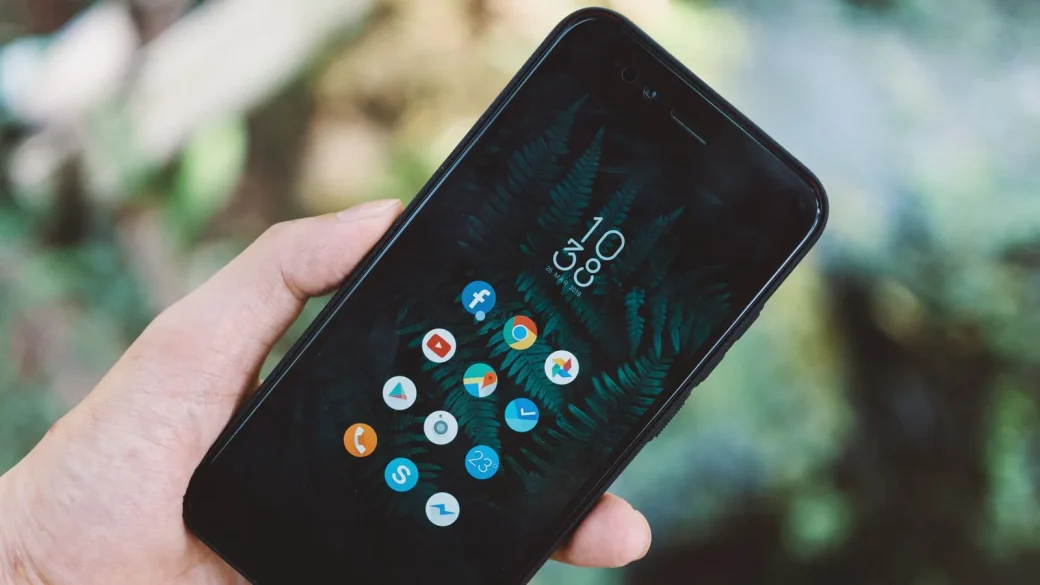
It also invents passwords for you. When you create a new account, the manager suggests a long random string like “7pQ2mVx9Lr4Kt” and saves it in the same click, so you never reuse an old favorite again.
You open the vault with one master password, plus a fingerprint or face scan on your phone. That single master password is the only one you truly need to carry in your head. If you want the wider picture of how this fits together, our overview of password security basics for regular people lays out the full plan.
The three questions that decide it
Ignore the marketing and answer three plain questions. Whatever passes all three is a fine choice.
Do you trust the company?
Stick with managers that have been around for years, publish independent security audits, and are widely recommended by security professionals. Well-known options in this category include Bitwarden, 1Password, and the managers built into Apple, Google, and Microsoft accounts.
Avoid anything obscure, free-with-no-explanation, or pushed at you through a pop-up ad. A password manager holds the keys to your life, so it is not the place to try a random app you have never heard of.
Does it work everywhere you do?
Check that it runs on your phone and your computer, and that it has an extension for the browser you use. If you have an iPhone and a Windows laptop, you want one that covers both, not one locked to a single brand.
Does the price fit?
Free plans from reputable managers cover the essentials for most people. Paid plans, usually a few dollars a month, add family sharing, emergency access, and extra storage. To weigh specific products side by side, our beginner comparison of popular password managers breaks down who each one suits.
The password managers built into your phone and browser are already free and decent. If choosing a separate app feels like too much today, turning on the built-in one is a solid first step you can upgrade later.
Set it up in under an hour
Here is the actual sequence, start to finish. Set aside 45 minutes and you will have breathing room.
- Install the manager’s app on your phone and its extension in your computer’s browser.
- Create your account with a strong master passphrase, four or five random words you have never used elsewhere.
- Save or print the recovery key it gives you, and store it somewhere safe at home.
- Turn on fingerprint or face sign-in so you are not typing the master password all day.
- Log in to your email in the browser and let the manager offer to save it.
- Repeat for your bank, then your top few shopping and social accounts.
When I set this up for my dad, the whole thing took about half an hour, and most of that was him choosing words for his master passphrase. He now signs into his bank with a fingerprint and has not been locked out once.
Do not make your master password something guessable like a pet name plus a birthday. This is the one password protecting all the others, so it deserves a long random passphrase and nothing less.
Getting your existing passwords in
You have two easy paths for moving your current logins into the vault. Neither requires typing everything by hand.
The gentle path is to let the manager save each login the next time you sign in. Over a week of normal use, most of your accounts land in the vault on their own, and you barely notice it happening.
The faster path is to import passwords your browser already saved. Most managers have an import button that pulls them in during setup. If you go this route, remember to delete the copies still sitting in your browser afterward, so you are not leaving a second exposed copy behind.
| Approach | Time needed | Best for |
|---|---|---|
| Save as you go | Spread over a week | People who want zero upfront work |
| Import from browser | 10-15 minutes | People with many saved logins already |
| Add by hand | A minute each | A few high-value accounts you want in now |
Finish strong with a second lock
Once your logins live in the manager, add two-factor authentication to your most important accounts so a stolen password alone cannot get anyone in. Our step-by-step guide to setting up two-factor authentication shows where the setting lives on each major service.
Turn 2FA on for your email first, then your bank. Those two accounts protect the rest, and adding a second step takes about two minutes per account.
For a trustworthy outside reference while you work, the U.S. cybersecurity agency’s Secure Our World basics back up everything here in plain language.
Your afternoon checklist
- Choose one reputable manager that runs on all your devices.
- Install the app on your phone and the extension on your computer.
- Create a strong master passphrase and save the recovery key at home.
- Enable fingerprint or face sign-in on your phone.
- Save your email, bank, and top accounts into the vault.
- Import browser-saved passwords, then delete the browser copies.
- Turn on two-factor login for your email and bank.
Choosing a password manager is one of those rare security moves that keeps paying off with zero ongoing effort. Pick one that clears the three questions, give it a focused hour today, and you have quietly upgraded every account you own.