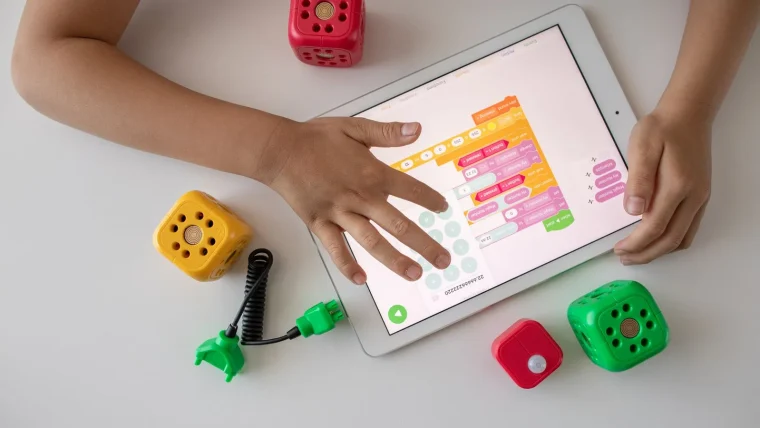
Six o’clock, dinner is ready, and the tablet will not go away without tears. Every parent knows this scene. The device becomes the villain, the kid becomes the negotiator, and you become the person repeating “five more minutes” for the fifth time.
Screen time limits are supposed to end that nightly standoff, not fuel it. Set up well, they let the device turn itself off so you are not the bad guy. The trick is realistic settings and a little consistency, not a heavier hand.
Key takeaways
- Let the built-in timer enforce limits so the device says no, not you.
- Focus limits on the apps that cause trouble, not total minutes alone.
- Downtime schedules handle bedtime and dinner automatically.
- Consistency beats strictness: a limit you keep matters more than a perfect one you abandon.
Aim for the right apps, not just the clock
A blanket daily limit treats an hour of video chat with grandma the same as an hour of an endless-scroll app designed to be hard to put down. Those are not the same, and your limits should know the difference.
Both Apple and Android let you set limits per app or per category. Give educational apps, video calls, and reading a long leash. Put tight caps on the social and game apps that tend to swallow whole afternoons. This targeted approach feels fairer to kids and cuts far more arguments than a single daily number.
If you have not yet turned on the underlying controls, our walkthrough on setting up parental controls that actually help covers the one-time setup that makes everything below possible. Screen limits are one strand of a wider plan, and they fit naturally alongside the wider approach in our home and family cybersecurity basics.
Think of it in two buckets. The first is time you want to encourage, like reading apps and video calls with relatives. The second is time you want to cap, like the social and game apps built to keep a thumb scrolling. Sorting your child’s apps into those two buckets on paper first makes the actual settings much faster to enter.
Set app limits on the device
Here is where you put real numbers in place. The steps differ slightly by device, but the idea is the same: pick the app, pick the daily allowance, and let the system count.
On Apple devices
Open Settings, then Screen Time, then App Limits. Tap Add Limit, choose a category like Social or Games, and set the time. When the child hits the limit, the app grays out. You can allow a one-time extension from your own phone, which is handy for genuine exceptions.
On Android devices
In Google Family Link, tap your child’s profile, then Screen time, then App limits. Choose an app, set a daily cap, and Family Link locks it once the time runs out. You can also set a total daily device limit from the same screen.
Involve your child in choosing the numbers. A kid who helped set a 45-minute game limit is far more likely to accept it than one who had it dropped on them. Ownership turns a rule into an agreement.
Use downtime to protect meals and sleep
The most valuable setting is not a limit at all. It is a schedule that switches off the fun apps during the hours that matter most: dinner, homework, and bedtime.
On Apple this is called Downtime, under Screen Time. On Android it is Bedtime and the daily schedule in Family Link. Set the device to wind down 30-60 minutes before bed, since screens close to sleep make it harder to fall asleep. Only calls and a short allowlist of apps stay available.
Keep phones and tablets charging outside the bedroom overnight. A device on the nightstand invites midnight scrolling, and no software schedule fully beats the temptation of a screen within arm’s reach.
Pick realistic numbers you can stick to
The best limit is the one your household actually keeps. A wildly strict cap that collapses within a week does less than a generous one you hold steady for a year.
Use these as a starting point and adjust for your child and your family’s values.
| Age range | Recreational screen time | Non-negotiable |
|---|---|---|
| Under 5 | Up to about 1 hour, co-viewed | No screens at meals or bedtime |
| 6 to 10 | Around 1 to 1.5 hours on school days | Homework before entertainment |
| 11 to 13 | Around 2 hours, more on weekends | Screens out of the bedroom overnight |
| 14 and up | Negotiated, with clear downtime | No devices during meals |
These are guideposts, not laws. Two hours of a kid building something in a creative app is different from two hours of passive scrolling, and your judgment matters more than any chart. For context on what counts as healthy media use by age, the American Academy of Pediatrics offers free family guidance at healthychildren.org.
Handle the pushback without caving
When limits are new, expect resistance. That is normal, and how you ride it out decides whether the limits survive.
When I helped my brother set caps on his kids’ tablets, the first three days were rough and the fourth was quiet. Kids test limits to see if they are real, so holding steady through the early pushback is most of the battle. Stay calm, point to the agreement you made together, and let the timer do the enforcing.
It also helps to give the empty time somewhere to go. A timer that ends a game without offering anything in its place feels like pure punishment. Have a snack ready, a game in the yard, or a book nearby, so the transition off the screen leads to something rather than nothing.
Grant occasional exceptions on purpose, not by accident. A rainy Saturday or a long car trip can earn extra time, and saying yes to those on your own terms keeps the limits from feeling rigid. What you want to avoid is the daily negotiation where every limit becomes a starting bid.
Screen time is one piece of a bigger picture. Pairing time limits with real conversations about what kids watch and who they talk to is the approach we lay out in our guide to keeping kids safe online without spying.
Your afternoon checklist
- Open Screen Time or Family Link and review how your child currently spends time.
- Set tight app limits on the social and game apps, looser ones on learning and calls.
- Turn on a downtime schedule that covers dinner, homework, and bedtime.
- Set devices to wind down 30-60 minutes before sleep.
- Agree on overnight charging outside the bedroom for every family device.
- Sit with your child and pick the daily numbers together.
- Plan to hold the limits steady through the first rough week.
- Add a monthly reminder to revisit and adjust the caps as they grow.
Screen limits are less about the minutes and more about handing your kid the skill of putting a device down on their own. Set the timers this weekend, weather the first few days, and you will find dinner gets a lot quieter.