
You have two broad ways to filter what your kids can reach online. One lives in your router and covers every device the moment it joins your Wi-Fi. The other lives as an app on each phone or tablet and follows the child even when they leave the house.
Neither is “the best”. They protect different things, in different places, with different amounts of effort. The trick is knowing which gaps each one covers so you can combine them without wasting money or patience.
Key takeaways
- Router controls cover every device on your home Wi-Fi at once but stop protecting the moment a phone switches to mobile data.
- App-based controls follow the child anywhere and offer finer control per app, but must be installed and maintained on each device.
- Router filtering is set-and-forget; app filtering is powerful but needs occasional attention.
- Most families get the best result by combining a light router filter with app controls on the devices kids carry outside.
How router-level controls work
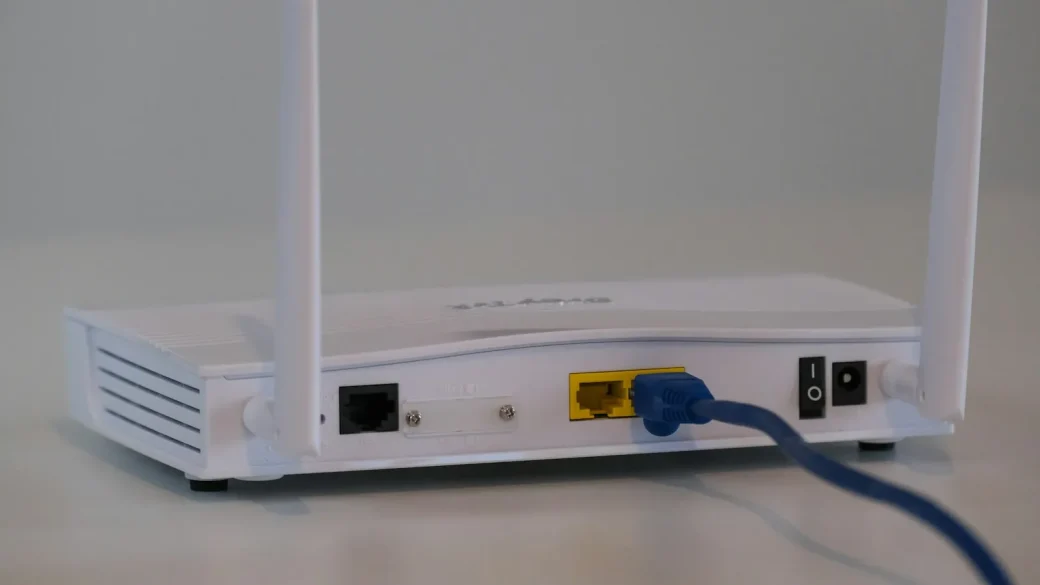
Router controls sit at the point where all your home traffic meets the internet. Because everything passes through that box, a filter there covers the family laptop, the smart TV, the kid’s tablet, and the guest phone, all at once.
You typically set them up in the router’s app or settings page. Many modern routers include profiles, so you can pause a child’s internet at bedtime or block certain categories for their devices specifically.
The strength here is reach and simplicity. Set it once and every device on the network inherits the rules. The catch is equally clear: the protection ends at the edge of your Wi-Fi. The second a phone drops onto mobile data or connects to a friend’s network, your router sees nothing.
Some routers include this free; others gate the good features behind a subscription. Before you pay, check whether your existing router already covers what you need under its parental or family settings.
How app-based controls work
App-based controls, including the built-in tools from Apple and Google plus paid services, run on the individual device. They travel with it.
Because they operate on the device itself, they can do things a router cannot: limit time inside a specific app, filter web content on mobile data, approve app downloads, and set screen-time schedules that apply everywhere.
They also see context a router never can. A router only knows a device asked for a website; the app knows which app is open, for how long, and can gently nudge or pause it. That difference is why app controls shine on a phone a teenager carries all day.
The trade-off is effort. You install and configure the tool on each device, keep it updated, and manage it as your child gets older and more resourceful about working around limits. Our practical walkthrough on how to set up parental controls that actually help shows the built-in options step by step.
Determined teens can sometimes uninstall an app or spot a second profile. Controls work best alongside honest conversation, not as a secret you hope they never notice.
Router versus app: a side-by-side look
Here is the same decision laid out plainly, so you can see where each approach earns its keep.
| Factor | Router-level controls | App-based controls |
|---|---|---|
| Coverage | Every device on home Wi-Fi | Only devices where it is installed |
| Works off home network? | No, stops at your Wi-Fi | Yes, follows the device on mobile data |
| Setup effort | Once, for the whole home | Per device, ongoing |
| Granularity | Category and time blocking | Per-app limits, downloads, precise schedules |
| Typical cost | Free to modest subscription | Free (built-in) to paid per family |
| Best for | Younger kids, shared devices, whole-home basics | Phones kids carry outside the home |
Which one should your family pick?
Match the tool to how your kids actually use their devices.
Younger kids on shared, stay-at-home devices
If your children are little and use a family tablet or a computer that never leaves the living room, router controls may be all you need. They cover the whole house with almost no upkeep.
Older kids and teens with their own phones
Once a child has a phone that leaves the house, router filtering alone leaves a wide gap. App-based controls become the important layer, because they keep working on mobile data and at friends’ houses.
The setup most families land on
In practice, a light router filter plus app controls on the carried devices covers the most ground. The router handles the smart TV and the shared tablet; the app handles the phone in your teen’s backpack. Pairing either with sensible screen time and app access limits turns rough blocking into something your kids can live with.
Start smaller than you think you need. Over-filtering breeds workarounds and resentment. When I helped a friend set this up, we blocked two clear categories and added more only when a real problem appeared.
Where this fits your broader family plan
Parental controls are one piece of keeping a household safe, not the whole thing. They pair with strong device setup, a secure network, and open family conversations.
For the full picture, our overview of home and family cybersecurity basics shows how controls, devices, and habits fit together. And the U.S. cybersecurity agency keeps free, plain guidance for parents at cisa.gov that is worth a skim.
Your afternoon checklist
- Open your router’s app or settings and check whether parental controls are already included.
- Create device profiles for each child so you can set rules and bedtimes per person.
- Turn on a light category filter at the router for the whole home.
- Install the built-in app controls (Apple Screen Time or Google Family Link) on each phone kids carry.
- Set per-app time limits and download approvals on those phones.
- Test it by trying a blocked site on both Wi-Fi and mobile data to confirm coverage.
- Talk with your kids about what is filtered and why, so the rules make sense to them.
- Revisit the settings every few months as your kids grow.
The right answer is rarely one tool. It is a small combination, tuned to your kids’ ages and where they take their devices, that you can actually keep up with over the years.