
A new phone lands under the tree, a tablet arrives for a birthday, a game console shows up after months of saving. The wrapping comes off, someone taps “Skip” through the setup screens, and the device is online before anyone has thought about a passcode.
Those first fifteen minutes shape how safe that device stays for years. Rush them and you inherit weak defaults, a wide-open account, and settings nobody remembers to fix. Slow down slightly and you set the thing up right, once, for good.
Key takeaways
- Set a real passcode or biometric lock before the device goes online, not after.
- Update the operating system on day one, because factory software is often months out of date.
- Use a fresh, unique account and turn on two-factor login so a single leaked password cannot open everything.
- For a child’s device, configure controls and privacy settings before handing it over, never after.
Before the device touches the internet
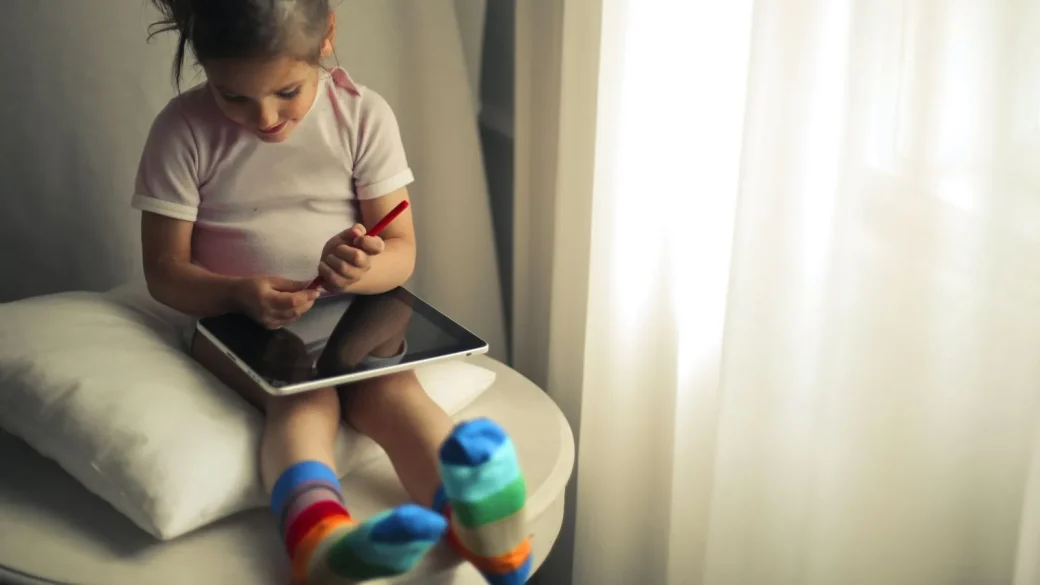
The setup wizard moves fast and tempts you to skip the boring parts. Resist that. The very first screens are where the important choices live.
Set a screen lock right away: a six-digit PIN at minimum, or face or fingerprint recognition. Avoid 1234, birthdays, or repeated digits. This one step means a lost or borrowed device does not immediately hand over messages, photos, and saved logins.
If the device asks whether to send diagnostics or personalized ads, you can safely decline both. You are not losing anything useful, and you are sharing less by default.
When I set up my dad’s tablet, I turned on the “find my device” feature during setup rather than promising to do it later. Later never comes. Doing it in the moment took ninety seconds and has already helped once when he left it at a cafe.
Accounts and two-factor login
Every phone, tablet, and console wants an account: an Apple ID, a Google account, a console login. This account controls purchases, backups, and often the ability to wipe the device remotely.
Use a unique password
Do not reuse the password from your email or another account. If that password has leaked anywhere, reusing it hands over the new device too. A password manager makes generating and storing a unique one painless.
Turn on two-factor authentication
Two-factor login adds a second step, usually a code from an app or a prompt on another device, so a stolen password alone is not enough. Set it up now, while you have the account open. Apple, Google, and the major consoles all support it in their account security settings.
If a child will use the device, do not simply log in with your own adult account. Create a child or standard account instead, so purchases and content are managed and the device is not tied to your personal identity.
Updates, backups, and app hygiene
Factory devices often sit in a warehouse for months, which means the software is out of date the moment you open the box. Those months of missed updates include security fixes.
Go to settings and run the system update on day one. Then turn on automatic updates so you are not doing this by hand every time. Do the same for apps.
Set up backups while you are here too. Cloud backup means a broken or lost device does not take the family photos with it. Then review which apps came pre-installed and remove ones nobody will use, since fewer apps means fewer things to keep patched.
Check what the apps can see
New devices often grant apps broad access by default. Open the privacy or permissions settings and look at what each app can reach: location, microphone, camera, contacts, and photos.
A flashlight app does not need your contacts, and a game does not need your location. Turn off anything that does not match what the app actually does. On most phones you can also switch location to “while using” instead of “always”, which cuts constant background tracking without breaking the app.
| Device type | Extra first-day step |
|---|---|
| Phone | Enable find-my-device and a strong screen lock; review app location permissions |
| Tablet (kids) | Create a child account and set content and screen-time limits before handoff |
| Game console | Set spending limits, add a login PIN, and restrict online chat for young players |
| Smart TV / streamer | Skip personalized ads, decline extra tracking, and set a PIN for purchases |
Setting up a child’s device the right way
A device meant for a kid needs a few extra steps, and doing them before handoff avoids awkward battles later.
Set content filters, spending limits, and reasonable time boundaries first. Our walkthrough on how to set up parental controls that actually help covers the practical settings on each platform without turning your home into a surveillance operation.
Talk to your kid about it too. A device set up with clear, explained rules lands far better than one that feels like a trap sprung on them after the fact.
Fitting the new device into the whole household
One well-configured device is great. A whole home where every device follows the same simple habits is what actually keeps a family safe.
If the new arrival is a smart speaker, camera, or connected gadget rather than a personal device, give it the same care plus the extra steps in our guide to securing your smart home devices. And to see how each device fits the bigger plan, our overview of home and family cybersecurity basics ties it all together.
The nonprofit at staysafeonline.org keeps free, family-friendly setup advice that pairs well with this checklist, especially for younger kids getting their first device.
Your afternoon checklist
- Set a strong screen lock (PIN or biometric) before the device connects to Wi-Fi.
- Decline optional ad personalization and diagnostics during setup.
- Sign in with a fresh, unique account password stored in your password manager.
- Turn on two-factor login for the device’s main account.
- Run the system and app updates on day one, then enable automatic updates.
- Switch on find-my-device and cloud backup.
- For a child, create a child account and set content, spending, and time limits before handoff.
- Remove pre-installed apps nobody will use.
Keep this list somewhere handy, because devices enter a busy household more often than you expect. Fifteen calm minutes at the start beats a frantic afternoon of cleanup after something goes wrong.