The little box blinking in your hallway is the front door to everything you do online: your banking logins, your kids’ tablets, the smart speaker in the kitchen, the work laptop on the dining table. Most people set it up once, years ago, and never think about it again.
That is exactly the gap intruders count on. The good news is that the mistakes below are common, boring, and quick to fix. You do not need to understand networking. You just need ten minutes and a willingness to open your router settings.
Key takeaways
- The default admin password on your router is the single biggest hole, and it takes two minutes to close.
- Old firmware is like an open window: updates patch flaws that intruders already know about.
- One strong Wi-Fi password plus WPA2 or WPA3 encryption keeps neighbors and drive-by attackers out.
- Guest Wi-Fi and a quick reboot are small habits that shrink your risk more than any gadget you can buy.
Leaving the router’s admin password on the factory default
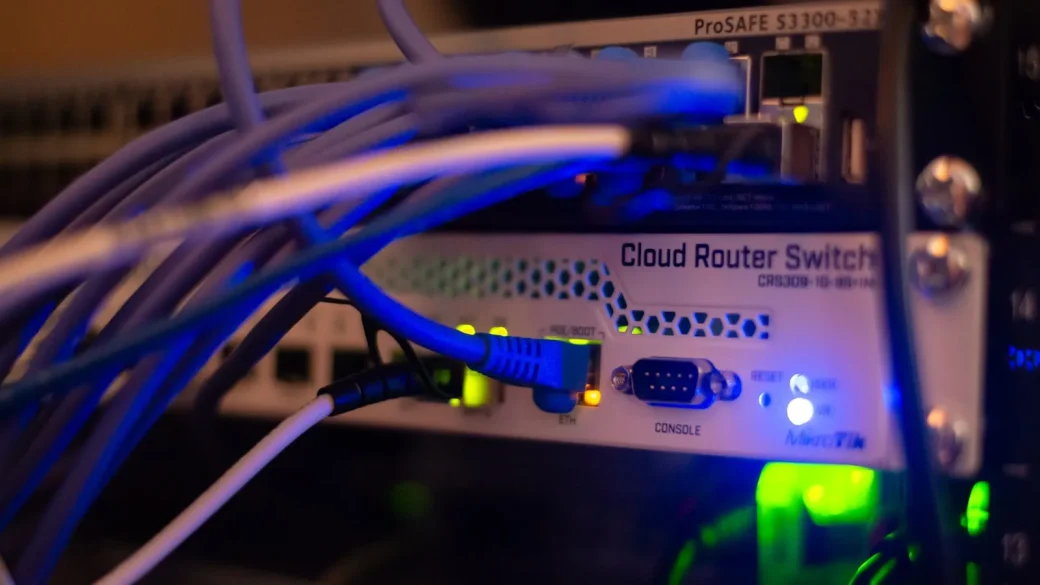
Every router ships with a login for its settings page, often something like “admin” and “password”. Those defaults are printed in manuals that anyone can find online in seconds.
When I helped my sister set up her place, her router still had the factory login three years in. Anyone who got onto her Wi-Fi could have changed her settings, redirected her traffic, or locked her out entirely.
To fix it, open a browser and type your router’s address, usually 192.168.1.1 or 192.168.0.1. Log in, find the admin or system settings, and set a long unique password. This is separate from your Wi-Fi password, and both matter. Our full walkthrough on how to change your router password and network name covers the exact clicks for the common brands.
The admin password (for the settings page) and the Wi-Fi password (for connecting devices) are two different things. Change both. People often update one and assume they are done.
Running years-old firmware full of known holes
Firmware is the software that runs your router. Manufacturers release updates to patch security flaws, but routers rarely nag you the way your phone does.
That silence is the problem. A flaw discovered in 2022 is still wide open on a router that has not been updated since 2021, and attackers keep lists of exactly these unpatched models.
Log into your router settings and look for “firmware update” or “system update”. Many newer models can update automatically, so turn that on if you see the option. If your router is more than five or six years old and no longer gets updates, it is genuinely time to replace it.
The FTC publishes plain-language advice on securing home devices, including keeping router software current. It is a solid, jargon-free reference at consumer.ftc.gov.
Using weak Wi-Fi encryption or a guessable password
Your Wi-Fi password does two jobs: it keeps strangers off your network, and it encrypts the traffic flowing through the air. Both fall apart if the password is short or the encryption setting is outdated.
Check your encryption type
In your wireless settings, look for the security mode. You want WPA3 if your router supports it, or WPA2 as the minimum. If you see WEP or “open”, change it immediately, because those offer almost no real protection.
Make the password actually strong
Skip your street name, your surname, or “password123”. Use a passphrase of four random words plus a number and a symbol, something like “OtterCandleRiverBolt7!”. It is easy to type once into each device and painful for anyone to guess.
For the complete network hardening routine, from encryption to network name choices, follow our guide on how to secure your home router and Wi-Fi.
| Encryption setting | Safe to use? | What to do |
|---|---|---|
| WPA3 | Yes, best available | Use it if all your devices support it |
| WPA2 (AES) | Yes, solid | A fine default for most homes |
| WPA / WPA2 mixed | Acceptable | Use only if older devices need it |
| WEP or Open | No | Change today; offers near-zero protection |
Broadcasting one flat network for guests, gadgets, and everything
When a visitor asks for your Wi-Fi password, most people just hand over the main one. Now that person’s phone, with whatever it may be carrying, sits on the same network as your laptop and your smart locks.
A guest network solves this. It gives visitors internet access while keeping them walled off from your personal devices. Most routers made in the last several years have this built in under “guest network” in the settings.
The same logic applies to cheap smart plugs and bulbs. Putting them on a guest or separate network means that if one gets compromised, it cannot easily reach the devices that hold your real data.
Name your guest network something plain like “Home-Guest” and give it its own password. When friends leave, you never have to worry that they saved credentials to your main network.
Ignoring the extras: WPS, remote admin, and stale connected devices
A few settings quietly widen your risk, and turning them off costs nothing.
WPS is the one-button pairing feature. It is convenient, but it has known weaknesses, so switch it off and connect devices with the password instead. Remote administration, which lets you manage the router from outside your home, should also be off unless you truly need it and know how to secure it.
Finally, open the list of connected devices in your router settings once in a while. If you spot something you do not recognize, change your Wi-Fi password. That single act kicks every device off and forces them to reconnect with the new one.
These habits sit inside a bigger picture. If you want the whole household approach in one place, start with our overview of home and family cybersecurity basics and work outward from there.
Your afternoon checklist
- Log into your router at 192.168.1.1 (or the address on its label) and change the admin password to something long and unique.
- Set a strong Wi-Fi passphrase of four random words plus a number and symbol.
- Switch encryption to WPA3, or WPA2 at minimum, and never use WEP.
- Find “firmware update”, install any pending update, and turn on automatic updates if offered.
- Turn on your guest network and move visitors and cheap smart gadgets onto it.
- Disable WPS and turn off remote administration unless you specifically need it.
- Review the connected-devices list and reset the Wi-Fi password if anything looks unfamiliar.
- Reboot the router once you are done so every change takes effect cleanly.
None of this requires you to be technical, and you will likely never think about it again for another year. That is the point: a few minutes now buys you a quiet, boring network that intruders simply pass over on their way to easier targets.