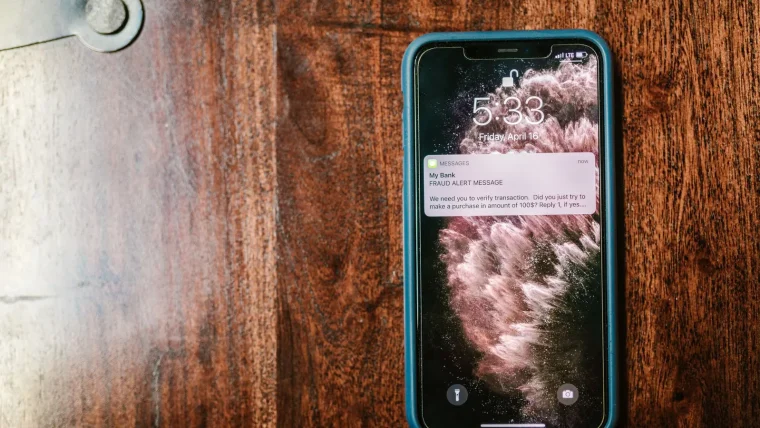
Search for a pair of running shoes once, and for the next two weeks those exact shoes will haunt you. They show up on the weather site, in the corner of a recipe, beside a news headline that has nothing to do with footwear. That is not a coincidence and it is not your imagination. It is a tracker, and there are usually dozens loaded on the pages you visit every day.
The fix is refreshingly simple. With about fifteen minutes and a couple of free changes, you can strip most of that surveillance out of your browsing without breaking the sites you actually use.
Key takeaways
- Most tracking comes from third-party scripts and cookies you never chose to load.
- A privacy-respecting browser or one good content blocker stops the large majority of it.
- You can layer protections, but you rarely need more than two tools working together.
- Blocking trackers usually makes pages load faster and feel less cluttered as a bonus.
What a web tracker really is
When a page loads, it does not just fetch text and images from the site you visited. It also quietly pulls in code from other companies: ad networks, analytics firms, and social widgets. Each of those can drop a marker on your browser and recognize you again elsewhere.
String those markers together across hundreds of sites, and a profile forms: what you read, what you shop for, roughly where you live, maybe your health worries or your politics. You never signed up for that profile, yet it follows you everywhere.
This is the machinery behind the wider picture we cover in our overview of online privacy basics. Blocking trackers is the single fastest step in that plan.
Trackers are not always cookies. Some rely on “fingerprinting,” which pieces together your screen size, fonts, and settings to recognize you even after you clear cookies. Good blockers fight both.
The fastest fix: switch or fortify your browser
Your browser choice does more for privacy than almost anything else. Some browsers block trackers hard by default; others need a nudge.
Browsers with strong defaults
Firefox, Brave, and Safari all block a meaningful share of trackers out of the box. In Firefox, open Settings, go to Privacy and Security, and set Enhanced Tracking Protection to Strict. Brave blocks trackers and many ads automatically with nothing to configure. Safari’s Intelligent Tracking Prevention is on by default and does a quiet, solid job.
When I switched my mother-in-law to Firefox with Strict mode, she called to ask why the internet suddenly felt “lighter.” That is fewer scripts loading, which also means faster pages.
Staying on Chrome
Chrome is the most popular browser and the weakest on tracking by default, since its maker sells ads. You can still improve it a lot by adding a content blocker, which we cover next. If privacy matters to you and you are on Chrome, that extension is not optional.
You do not have to abandon your current browser entirely. Many people keep one browser for logged-in accounts and a hardened second one for general browsing. It costs nothing and cleanly separates your activity.
Add one good content blocker
A content blocker is a small add-on that filters out tracking and ad scripts before they load. The most trusted free option is uBlock Origin, which works on Firefox and several Chromium-based browsers. It is open source, lightweight, and does not sell your data, which matters when the tool itself has access to everything you browse.
Installing it takes about two minutes. Go to your browser’s extension store, search for uBlock Origin by the developer Raymond Hill, add it, and you are done. It works well on default settings, so you do not need to touch anything else.
Many “ad blockers” in extension stores are copycats that inject their own tracking or ads. Stick to well-known, open-source names and check the developer, not just the logo. A blocker with a bad heart defeats the whole point.
The official project page lives at ublockorigin.com, and it links to the correct store listing for each browser so you avoid the imitations.
Compare your options at a glance
Here is how the common approaches stack up so you can pick what fits your comfort level.
| Approach | Effort | Tracking blocked | Best for |
|---|---|---|---|
| Firefox Strict mode | 2 minutes | High | Most people who want set-and-forget |
| Brave browser | 5 minutes to switch | Very high | People happy to change browser |
| Safari default | None, built in | Medium-high | Apple device users |
| Chrome plus uBlock Origin | 5 minutes | High | People who must stay on Chrome |
What blocking trackers does not do
Setting expectations keeps you safe. A tracker blocker stops third parties from following you across sites, but it does not hide your traffic from your internet provider, and it does not log you out of the accounts where you are signed in.
Private browsing windows are a separate thing that many people confuse with real anonymity. If you want the honest limits of that feature, read our piece on what incognito actually hides before you rely on it.
Cookie banners are also their own beast. Blocking trackers reduces them, but you will still meet consent pop-ups, and answering them well matters. Our guide to handling cookie consent pop-ups the right way shows you how to reject the extras in one or two clicks.
Keeping it working over time
Tracking techniques evolve, so a little upkeep helps. Let your browser and blocker update themselves; both push filter and protection updates quietly in the background. You do not need to babysit them.
Once every few months, glance at your extensions and remove any you no longer use. Every add-on is a door into your browsing, and fewer doors is safer. That five-minute habit keeps your setup lean and trustworthy.
Your afternoon checklist
- Pick a privacy-respecting browser: Firefox with Strict tracking protection, Brave, or Safari.
- If you stay on Chrome, install uBlock Origin from the official developer and confirm it is active.
- In Firefox, set Enhanced Tracking Protection to Strict under Privacy and Security.
- Restart the browser so the new protections apply to every tab.
- Visit a few sites you use daily and confirm they still work normally.
- Remove any old ad-blocker copycats or unused extensions you no longer trust.
- Turn on automatic updates for your browser so protection stays current.
Blocking trackers is the rare privacy step that improves your day-to-day browsing while it protects you: cleaner pages, faster loads, and no more shoes stalking you across the web. Set it up once, and it keeps paying off every single time you open a tab.